



 Download Screen Recorder For FREE!
Sometimes I want a short game clip or an app screenshot, and I don't need another recording app. Windows comes with Xbox Game Bar, and it can be great for basic screen recording. But there may only be some of your settings you can change, and certain areas of the window and desktop can't be captured. In this article, you will find out all about Xbox Game Bar screen recording. Starting from installation to troubleshooting the feature when it doesn't work.
Brief Summary: Want to take screenshots of a game or application window without installing additional programs? Xbox Game Bar already offers Windows users the possibility to record on the fly. This article not only explains the minimal setup for using it but also gives alternatives when screen recording through it fails, while recommending VideoSolo Screen Recorder as a more flexible alternative for video recordings that require greater freedom.
What is Xbox Game Bar Screen Recording?
Xbox Game Bar is a feature included in the Windows operating system that allows me to record supported apps and games without installing any other software. With a quick press of Windows + G, I can easily call up Xbox Game Bar, a versatile Xbox Game Bar screen recorder that allows for simple screen captures.
Primary Use Cases: It is for capturing gameplay, creating app demonstrations, making tutorials, and saving or sharing videos that are short in length.
Core Capabilities: The Game Bar overlay offers convenient access to features like being able to begin/end recording sessions, grabbing screenshots, recording computer microphone with the game, and controlling the recording through its minimalistic interface.
Record Screen on Xbox Game Bar: Step-by-Step Setup
Make sure Windows has the Xbox Game Bar enabled before starting. After that, you can record compatible games and apps using a straightforward keyboard shortcut.
Step 1. Press the Windows key + I, and that will take you to the Settings page. Type Xbox Game Bar in the search field and verify that the feature is enabled.
Step 2. Open the game or app that you wish to record. To do that, press Windows + G and the Xbox Game Bar should appear.
Step 3. Click on the Capture widget. If it is your personal voice that you want to record, click on the Microphone icon. It is also possible to simply press Windows + Alt + M to switch it.
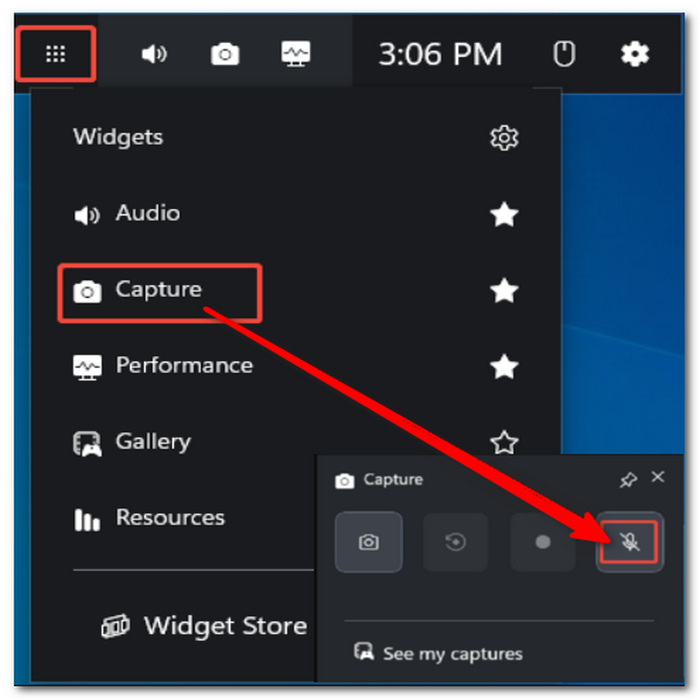
Step 4. To get started with the recording, either click the Record button or use Windows + Alt + R. Keep the game or app open and interacting. While you are doing this, Game Bar is quietly filming you.
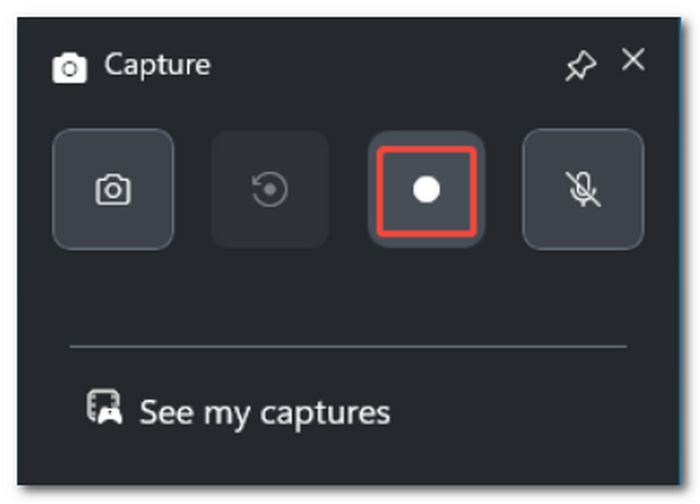
Step 5. Press Windows + Alt + R again if you want to end the recording.
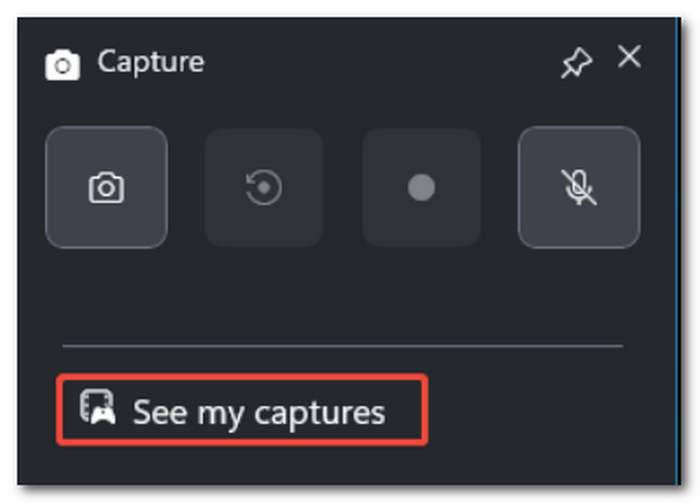
Step 6. Go to the Videos > Captures folder. Recordings made by Game Bar are saved in MP4 format.
 Tips
Tips
To record system sounds, go to Game Bar > Settings > Capturing and set the audio option to all sounds related.
Important: Xbox Game Bar is mainly there to record games and some selected apps. There are certain restrictions with this. For instance, it will not capture the Windows desktop or File Explorer in a separate window. If the only part of the screen you want to record is those areas, you will need to use another screen recording tool.
The Frustrating Limits of Xbox Game Bar (Why It Often Fails)
To some extent, Xbox Game Bar is very handy when wanting to record in the blink of an eye, but there are some features missing that could be useful when recording other than gameplay scenes. Some examples of the drawbacks that could make it hard for me to get a recording or know how to record Xbox gameplay include:
- • Desktop lockdown: Game Bar does not support recording the desktop, the Windows Start menu, File Explorer, or any of Windows' core OS UIs. It rather focuses on the games and apps that Microsoft has decided to support.
- • "Nothing to record" errors: Recording may fail due to graphics drivers being out of date, hardware encoding problems, or compatibility problems with various applications. These issues may cause Game Bar to display an error even when the recording options have been enabled.
- • Performance impact: Recording a screen while gaming at high requirements can impose an additional system load, causing frame drops, stutter issues, and generally lower gameplay performance on PCs.
This constraint works well for short video recording. But if recording needs are complex, then VideoSolo Screen Recorder, which is a professional-level screen recorder, might be a better alternative.
The Ultimate Upgrade: VideoSolo Screen Recorder
VideoSolo Screen Recorder is software that you can use on your desktop, which enables you to record games, applications, the Windows desktop, specific areas of your screen, and other on-screen activity with system and microphone sound.
Why Choose It?
- • Unrestricted capture: Capture the entire screen, individual windows, or a particular area.
- • Game recording mode: Created to record gameplay properly. Real-time.
- • Real-time tools: During or immediately following recording, you can add annotations and make simple edits.
- • High-quality output: Can output to a wide variety of formats and quality settings.
- • Lightweight workflow: Brings me some more control over the recordings instead of being completely consumed by the confines of Xbox Game Bar.
How to Record an Xbox Screen with VideoSolo Screen Recorder
If your purpose is to learn how to record an Xbox screen and have it displayed on the computer, the easiest way is to use a PC tool like VideoSolo Screen Recorder to take screenshots of the Xbox games/applications. Just follow the steps below:
Step 1. Switch on your Xbox Console and the Xbox App of your Windows PC. Make sure your PC is connected to your Xbox and then launch the game. If the feature has been turned on, the game you're playing will be seen in your PC window too.
Step 2. Open VideoSolo Screen Recorder, and then choose either the Game Recorder or another recording function suitable for your needs.
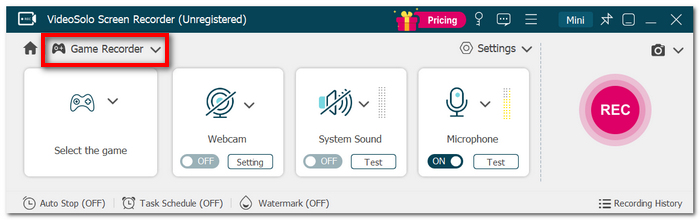
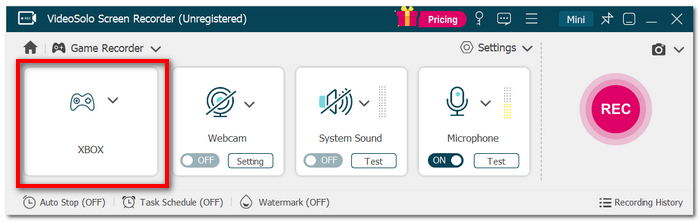
Step 3. Select the Xbox app or the streamed Xbox gameplay window that appears on the screen.
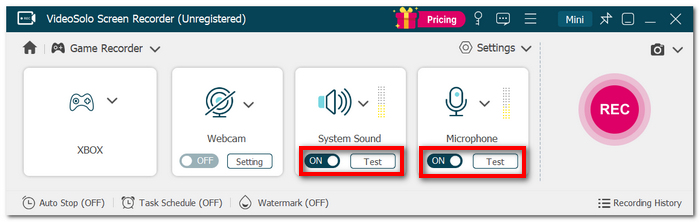
Step 4. Make sure System Sound is turned on to capture the game's audio. To have a voiceover of the gameplay, switch the Microphone to ON.
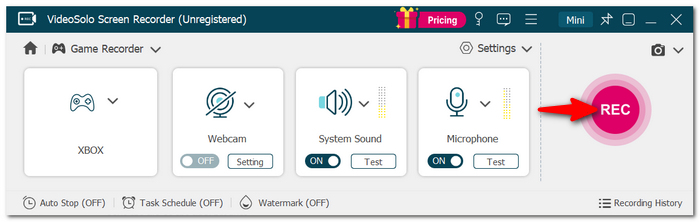
Step 5. Hitting the REC button starts a recording session. VideoSolo will keep recording while you enjoy the game.
Step 6. End your recording by clicking Stop. Watch the recording, edit it if possible, and then save the file as the final product.
User Review
According to VideoSolo's data, it is mainly praised for its intuitive user interface, stable recording quality, and different capture choices that users can select from. As a result, VideoSolo Screen Recorder becomes a great solution in cases where it is not possible to use Xbox Game Bar to capture the targeted screen or app window.
FAQs on Xbox Game Bar Screen Recording
What to do when Game Bar records gameplay videos without picking up the microphone?
You'll want to start by ensuring the mic is working and not being ignored via Windows key + Alt + M. Check that the microphone Windows is selecting as the input device is the one you want to use for the recording. If Windows does not detect your microphone at all, there might be a problem with the audio device or the driver, and because of this, it could be that Game Bar is not the issue.
Is there a way to run a game recording while also taking screenshots?
Of course you can. When playing games that are supported, you can just press Windows + Alt + Print Screen to take a screenshot, and then you'll automatically have it stored in your Captures folder, which has the Game Bar recordings too.
What if I'm not fond of using Xbox Game Bar as my sole recording feature built into Windows?
There are other screen-recording programs built into Windows. For example, on Windows 11, the Snipping Tool has a screen-recording option, and Microsoft presents it next to Xbox Game Bar as a screen-recording function of the operating system.
Conclusion
By now, you've probably learned different ways to record on Xbox using Game Bar. We also tell you the solution if your recording isn't going as planned. Although Game Bar may be useful for small videos, the screen recorder from VideoSolo is an all-purpose tool that you can use whenever you want to record your desktop, enjoy better control, and benefit from recording with fewer restrictions.
More Reading
Capture screen activities, audio, webcam, gameplay, and mobile screens on Windows and Mac with high quality.

