


 Download Screen Recorder For FREE!
An iPhone offers various capabilities, much more than just calling, photography, and leaving voice notes. The phone can be a handy recorder to save conversations, presentations, music tutorials, and other kinds of sound you may like to remember. Yet, the main aspect is that usually the best recording technique will depend on what kind of recording you are attempting to do. A simple voice memo takes minimal effort and is far from the setup for internal system audio or long recording sessions. For this exact reason, this article will explain how to record audio on iPhone via easy internal solutions, desktop recording, third-party apps, and even microphones, so you can pick the approach that goes with your recording goals.
- Method 1: The Ultimate Way to Record iPhone Audio
- Method 2: Recording Quick Audio Notes Using Apple Voice Memos
- Method 3: Record on iPhone with System & Microphone Audio
- Other Best Third-Party iPhone Voice Recorder Apps
- Professional Hardware Setups for Studio-grade iPhone Audio
- FAQs on Recording Audio on iPhone
Best overall: VideoSolo Screen Recorder with iOS mirroring for long, high-quality recordings.
Quick voice notes: Voice Memos for simple everyday recordings.
Screen + audio: iPhone's built-in Screen Recording for capturing what's happening on your screen.
Professional audio: An external microphone for cleaner vocals, interviews, and content creation.
Method 1: The Ultimate Way to Record iPhone Audio
If I need to record iPhone audio for longer periods and still be able to automatically send my recording file to my computer, then my go-to is VideoSolo Screen Recorder. It offers the Phone Recorder feature, which can use USB or wireless to mirror an iPhone screen to a Windows PC or Mac. It also has the capability of recording the phone's system sound and microphone at the same time with almost zero delay.
Why Choose VideoSolo?
- • Capture high-quality lossless videos of iPhone content.
- • Select whether to record iPhone sound from the iPhone or an external microphone.
- • Saving recordings on computers is not only efficient for your device's storage, but you also won't lose the recordings.
- • While you are recording, the iPhone display is synchronized with the computer screen without visible lag.
- • Configure the recording window, audio gain, speaker output, and other settings to your preference.
How to Record iPhone Audio with VideoSolo
Step 1. To connect your iPhone to your computer, you can either use a USB cable or a supported wireless mirroring method. Run VideoSolo Screen Recorder on your computer.
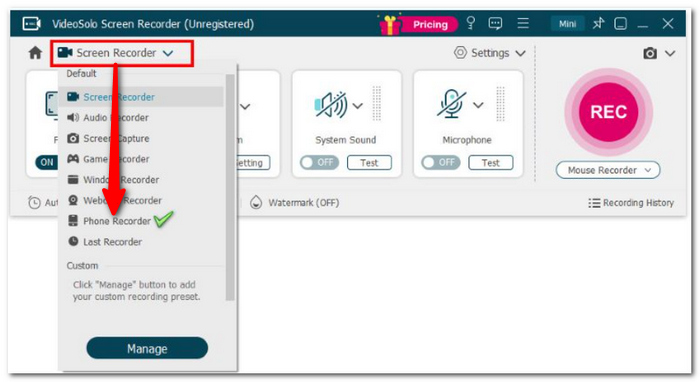
Step 2. Select Phone Recorder in the main interface. Choose the iOS device.
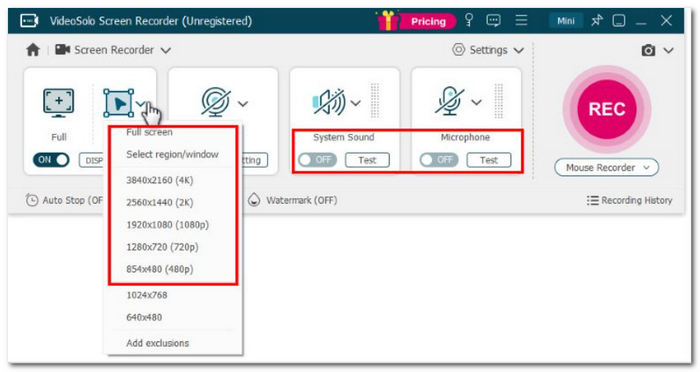
Step 3. To choose the recording area, choose Full or Custom. Next, change the system sound and microphone volume bar to suit your needs.
Step 4. If you want to make changes to the output format or quality, or select the folder where to save the recording file, please switch to Recording Settings by clicking on it.
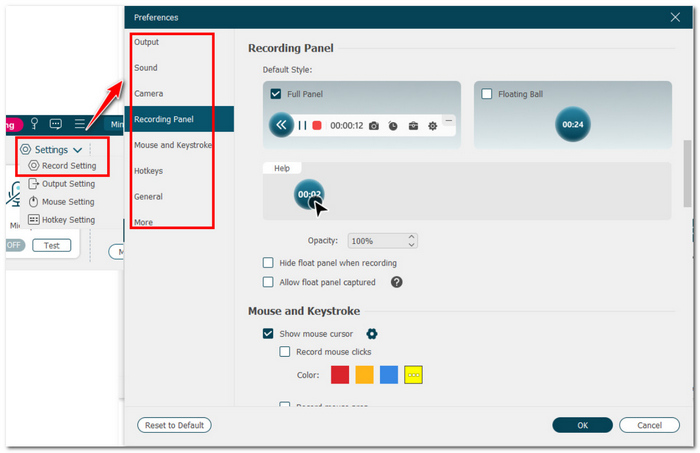
Step 5. Click the REC button to start recording. When you have finished your recording, just click on Stop.
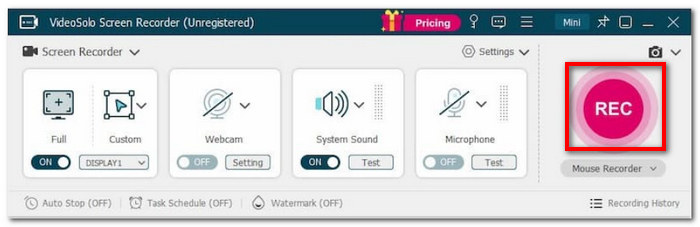
Step 6. Look over your recording, then save it to your computer.
Testing Experience
I realized that this method was better suited for the audio recording on an iPhone scenario if I needed a longer recording time. Rather than limiting myself to just the storage and recording features on the iPhone alone, I can mirror the device and have the recording saved directly from my computer to the phone. The approach allows me to manipulate sound sources and the recording setup, which gives me a lot of power over my recording.
Method 2: Recording Quick Audio Notes Using Apple Voice Memos
Best For: The default app pre-installed on all iOS devices for quick speech capture.
If you want to do quick voice note reminders, interviews, or just make a few notes on everyday things, Voice Memos is likely the easiest option you can get. As it's already installed on the iPhone, I don't need to download another iPhone app for an audio recording program to do a simple voice record.
How to Record with Voice Memos
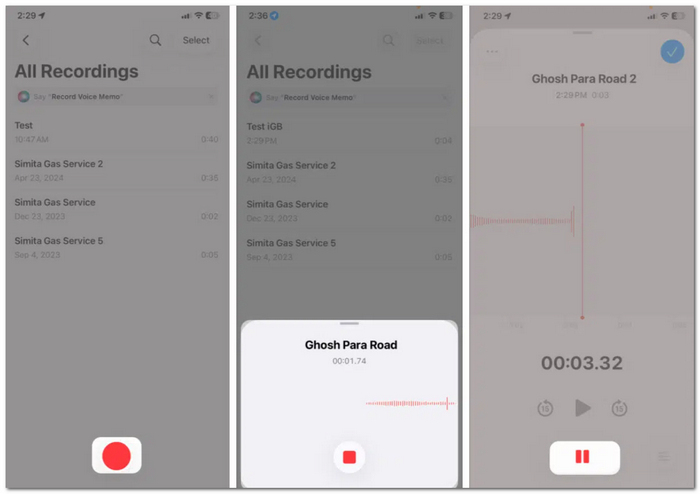
Step 1. Open the Voice Memos app. To continue, tap on the Record button.
Step 2. Make sure to speak clearly to your iPhone's microphone and press the Stop button once your record is ready.
Step 3. The file will be stored in Voice Memos as soon as the device completes the recording.
Pro Tip: Use Lossless Audio
You'll be able to get higher-quality recordings if you switch your audio quality from compressed to lossless. Here's how it can be done:
Step 1. Launch Settings. Scroll down to the menu and tap on Apps.
Step 2. Tap on Voice Memos and select Audio Quality.
Step 3. Set it to Lossless instead of Compression.
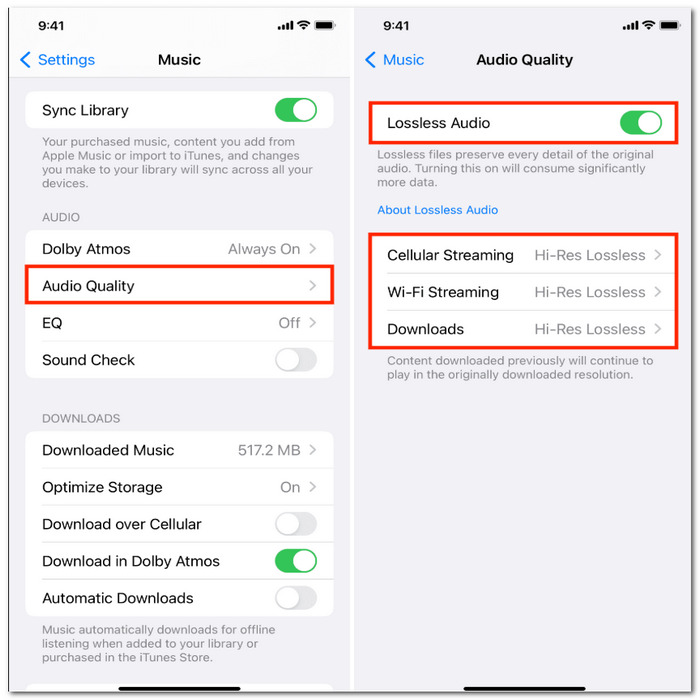
Although they may need more storage, lossless recordings will result in the greatest quality audio, and they will be a better choice if the idea is that you are going to do some editing with the recording afterward.
Method 3: Record on iPhone with System & Microphone Audio
To save an online presentation, gameplay tutorial, or similar activity on your iPhone, a good idea is to use the built-in Screen Recording feature. Also, when you intend to include your voice or add commentary, turning on the microphone is the way to go. How to screen record with audio on iPhone? You will see that the procedure to do so is very easy.
How to Screen Record with Audio on iPhone
Step 1. To open Control Center, swipe it down from the top-right corner of your screen. If there's no Screen Recording button, press and hold the Control Center background, choose a Control and add it, then pick Screen Recording.
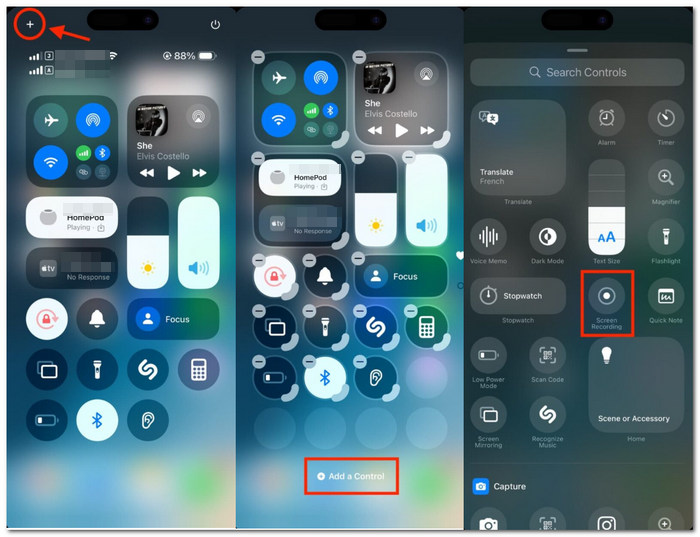
Step 2. Hold your finger on the Screen Recording button. If you wish to record your voice, press the microphone button to turn it on.
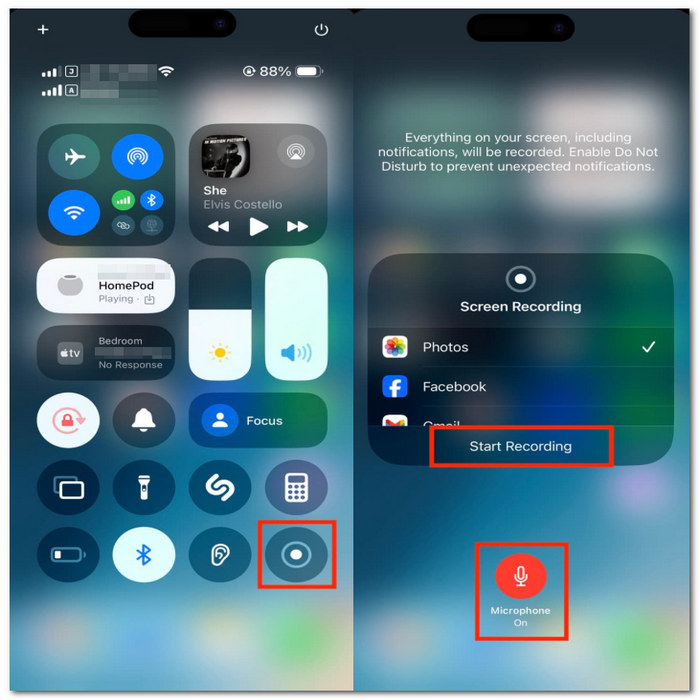
Step 3. Touch Start Recording. The screen will enter a 3-second countdown before the recording begins. Play the video presentation game, or other content you wish to capture.
Step 4. Tap the red recording light in the top bar of the screen to end the recording when you are done.
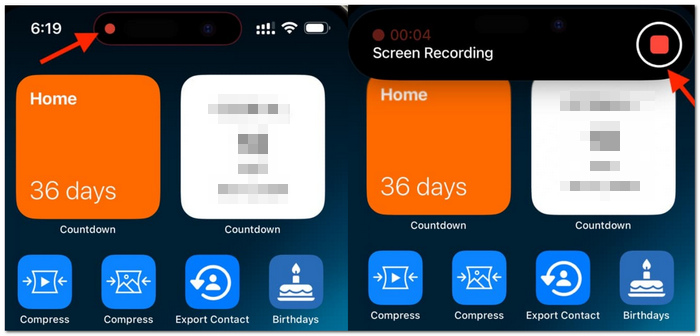
Step 5. Open the Photos app to locate the saved recording.
Some apps won't allow screen or audio recording, so their internal audio might not be captured through such recording.
Other Best Third-Party iPhone Voice Recorder Apps
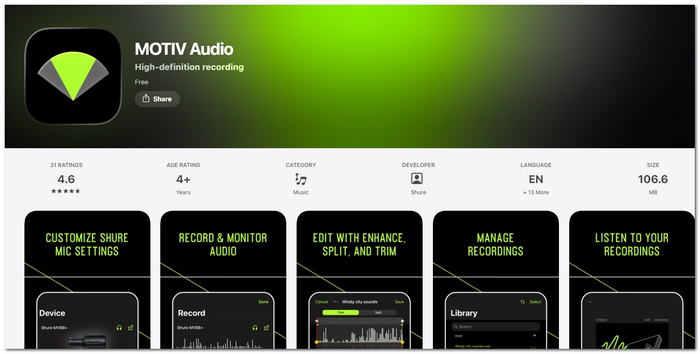
1. MOTIV Audio – Best for High-Quality Mobile Recording
Best For: Music and podcast artists, and other content creators who desire to make great quality recordings directly with an iPhone.
MOTIV Audio is Shure's no-cost application for mobile recording. The app records the audio file in WAV, a lossless format without loss, and by making use of the iPhone microphone, it's also compatible with Shure MOTIV microphones to provide a set of more advanced controls.
 pros
pros
- Accepts WAV, FLAC, Apple Lossless, and AAC in their uncompressed forms.
- High-resolution display of input levels and recording configuration parameters, which can be freely changed.
- Contains basic editing tools like cut, paste, split marker, and fade-in and fade-out capabilities.
 Cons
Cons
- A few users have said that the application freezes or there are issues when recording for an extended duration.
- Advanced setting options for the microphone are really useful only if one uses it with Shure hardware that is compatible.
Testing Experience: I discovered that MOTIV Audio was really ideal for doing voice and music recording of the highest quality, rather than quick voice notes. The truth is, there is one-press recording control, and the possibility to save a copy in a lossless quality format makes this device a great choice when I need to do some detailed editing on the audio. If you are looking for an app for voice recording on iPhone, you can not go wrong with it.
2. CocoonWeaver – Best for Private Voice Journaling
Best For: Individuals who wish to discreetly jot down thoughts, ideas, and voice notes and later sort through them.
CocoonWeaver is the iPhone voice and audio diary app that allows me to make notes, classify them into different groups, and turn the recordings into written words without leaving the device. What's more, recording through Apple Watch and with the help of Siri is made possible here as well.
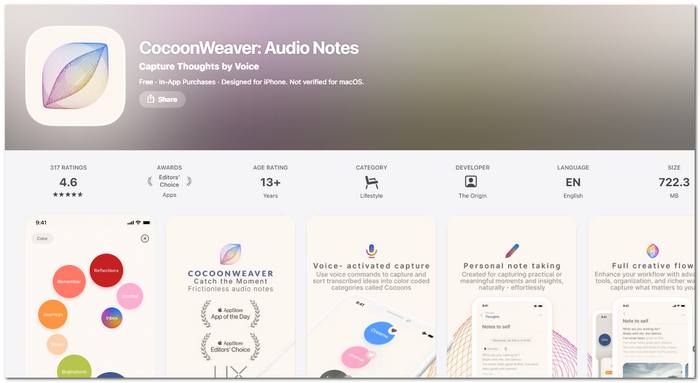
pros
- Lets you take the recording even when disconnected from the internet by saving it locally.
- There is offline transcription and text search.
- Enables the user to create categories and share the recordings either in the form of audio or text.
Cons
- Paying within the app is necessary for some premium features.
- More of a voice journal and organization tool than a professional-grade audio recording.
Testing Experience: CocoonWeaver, based on my experience, is more of a tool for getting organized with your voice notes than just taking some voice notes. Really, it relies more on offline use, and transcripts make working with the app even better when I decide to record some sounds on my iPhone and then want to put the recordings in order.
3. Voice Record Pro – Best for Advanced Recording Controls
Best For: Those seeking the ability to have longer recording time than what is supported on your iPhone, full access to customize file formats, file extensions, sample rate, quality, and backup/transfer your recordings.
Voice Record Pro is a feature-rich iPhone recorder that supports recording in WAV, MP3, and AAC/M4A formats with configurable bit rate, sample rate, bit depth, and channels, editing, and various exporting options.
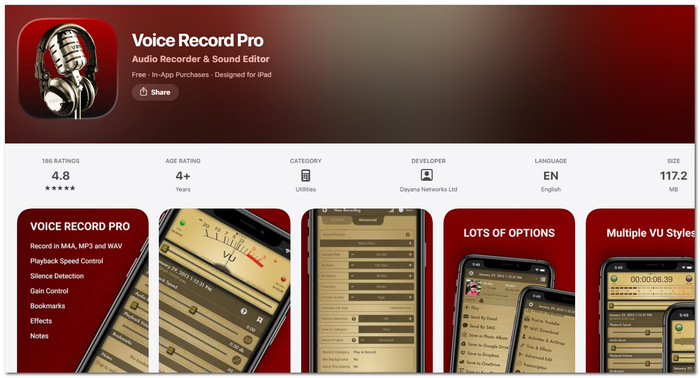
pros
- Detailed recording quality control plus various audio settings.
- WAV, MP3, and AAC/M4A are the supported formats.
- A sizable number of exporting options are available, such as iCloud Drive, Google Drive, Dropbox, and Wi-Fi transfer.
Cons
- With tons of settings, new users may experience confusion and intimidation.
- The free version carries an ad displayed at the bottom of the application.
Testing Experience: I think it was a much more suitable product for users who actually wish to edit their recordings or change the recordings in some way besides merely pressing record and saving the file. Its format quality editing and transfer controls are quite useful if one needs to be more flexible with recording and audio file issues on iPhone.
Professional Hardware Setups for Studio-grade iPhone Audio
In order to get a cleaner and more professional sound on my iPhone, an external microphone will be able to create a noticeable change. The phone's microphone is not as good. It can easily be drowned out by ambient noise and might not record clearly when there is some distance between the speaker and the phone.
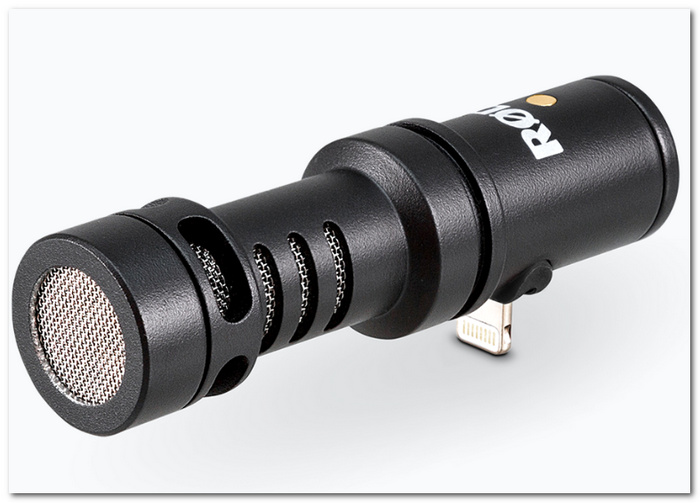
Shotgun microphones: RODE VideoMic Me-L for directional options is good for recording focused audio and can even connect directly to compatible iPhones.
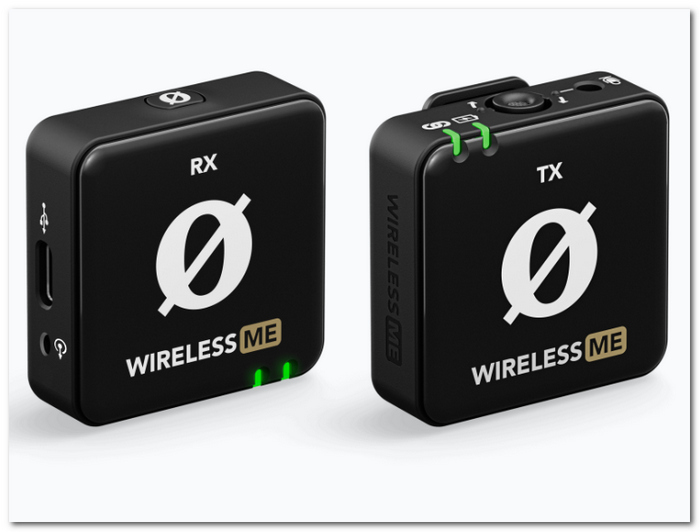
Wireless lavaliers: Wireless lavaliers like RODE Wireless ME or NearStream AWM20T give a lot of movement freedom and are so great in cases like recording interviews, making presentations, and hands-free use.
Placement tip: Try not to place the microphone capsule too close, ideally around 15- 20 cm from your mouth. In this way, you get clear vocals while at the same time reducing plosive effects that occur with words with hard "P" or "B" sounds.
FAQs on Recording Audio on iPhone
Can I record audio while my iPhone is connected to a Mac?
Yes. Using a desktop recorder can help if you want to duplicate the iPhone on your screen and store longer recordings directly on the computer to avoid filling up phone storage alone.
How can I be sure an important audio recording from iPhone doesn't get lost?
Once done with the recording, it is better to export or back up the file, not leave it as the only copy on the phone. Having another copy either in Files, iCloud Drive, or on a computer makes it possible to have a backup in case anything happens to the initial one.
Is it possible to make an iPhone audio recording in a room that is full of noise?
Yes, though the background noise might come out as well. Being near the object making the sounds, using a mic that picks up sound in one direction, or a change in the recording location to one that's quiet will really raise the quality of the recording.
Conclusion
Recording via an iPhone doesn't necessitate being compl ex and time-consuming. It all depends on the kind of sound you wish to record: a quick voice note, system audio or a much cleaner sound for more serious content. There's a good set of methods to choose from, and with that, audio recording on iPhone becomes almost like taking a picture, and yet I get both the quality and the options that are really useful.
More Reading
Capture screen activities, audio, webcam, gameplay, and mobile screens on Windows and Mac with high quality.

