


 Download Screen Recorder For FREE!
In actuality, the ability to record audio on a PC may differ, or at least depend on what I'm looking for. So, making a quick voice memo is easy, but recording computer audio, music, or meetings, as well as podcasts, may be quite perplexing when Windows settings and audio routing enter the scene. Recording audio on a PC is not just about hitting the record button. It’s about selecting the appropriate tool for the task. In this post, I will discuss simple built-in alternatives, a relatively hassle-free one, and advanced instruments for users who require more recording control.
Part 1. Using Windows Built-in Tools (Free & Pre-Installed)
Windows Sound Recorder is probably the easiest way if I only want to record computer Microphone for a change. It comes built in with Windows, so there is no need to get a separate app just for making a simple recording.
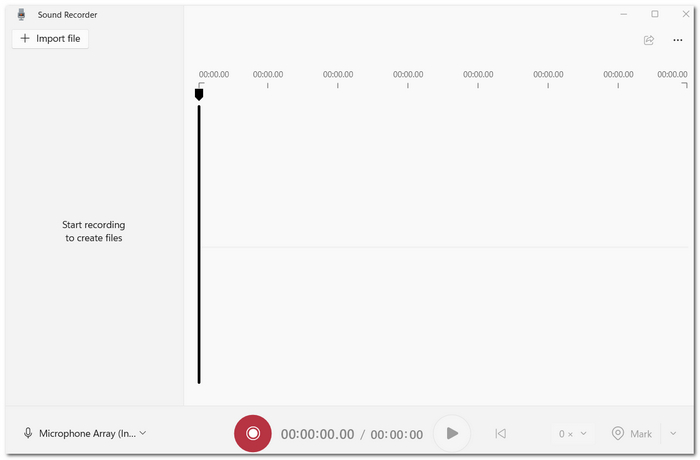
Step 1. To start recording audio with your PC, open the Sound Recorder from the Start menu in Windows.
Step 2. Click the Record button. Speak through the microphone that is connected to the PC.
Step 3. Hit the Stop button once you finish. Listen to the recording and, if necessary, do the editing with the help of the editing options provided.
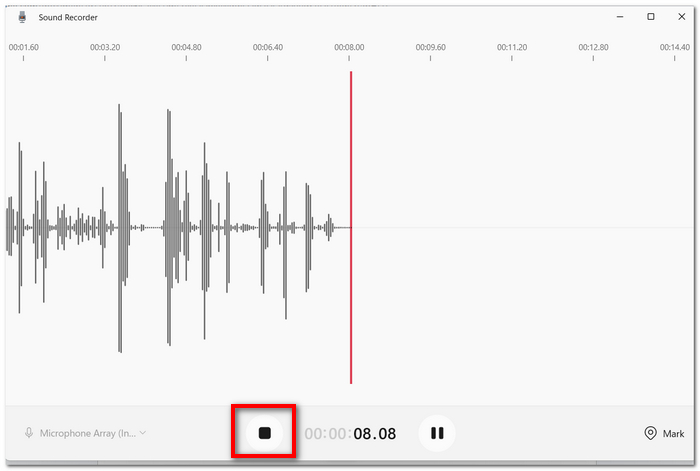
Step 4. The recording will be stored automatically.
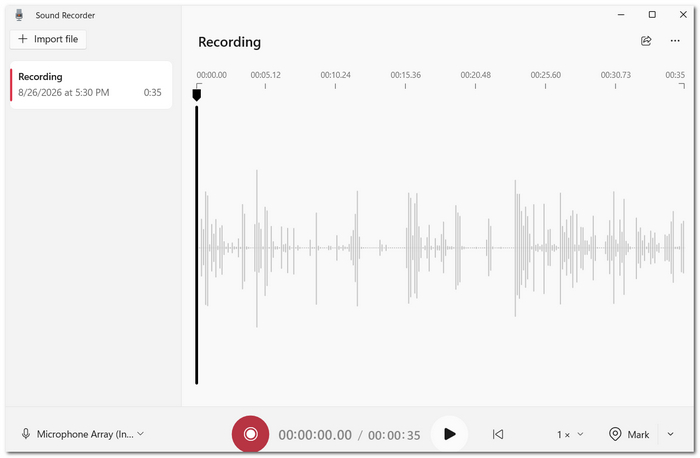
This is an easy method for exploring how to record audio on Windows, mainly for voice notes, meetings, or simple narration.
Limitation
Sound Recorder does a decent job of making microphone recordings, but it does not have a straightforward way to record internal system sounds. An alternative method could be to use the old Stereo Mix feature. However, newer PCs may lack this feature, or it may not be trustworthy enough, as on some systems, echoes or audio-routing issues may occur.
Part 2. Hassle-Free Method to Record Audio on PC (Exclusive)
OS Requirement: Windows and macOS.
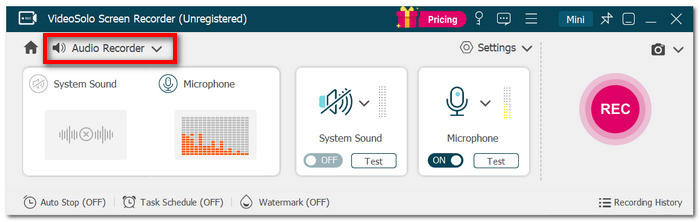
VideoSolo Screen Recorder is a desktop recorder that comes with a separate Audio Recorder feature. It allows you to easily record system sound, microphone audio, or any combination of the two without having to be an expert in managing your computer audio sources.
Why It Stands Alone
After running the tests, I discovered that the installation was much easier than manually adjusting Windows audio inputs. I'm capable of switching to my audio source, modify configuration options, and begin to film without running Stereo Mix or dealing with complex routing.
Key Features
 Features
- Captures system audio and microphone audio individually or simultaneously.
- Features controllable audio quality and output settings.
- Equipped with noise reduction to enhance microphone quality.
- Enables recordings during specific times to allow hassle-free capturing.
- Stores recordings in the most popular audio formats.
How to Record Audio on Windows Using VideoSolo Screen Recorder
Step 1. Open VideoSolo Screen Recorder. Go to the Audio Recorder screen.
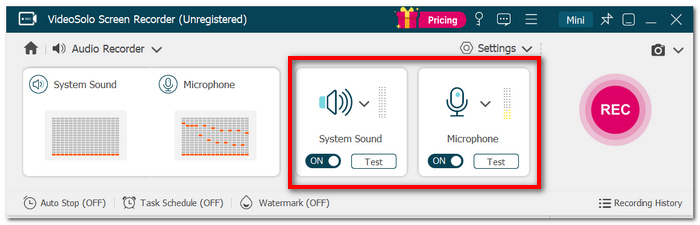
Step 2. Switch System Sound on, Microphone On, or both.
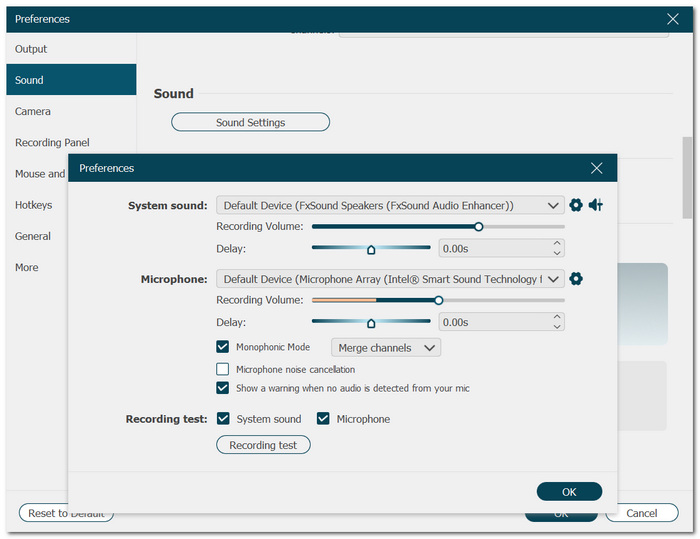
Step 3. Adjust the volume and audio quality settings for the audio to be recorded.
Step 4. Hit REC to begin. Run the audio you wish to capture.
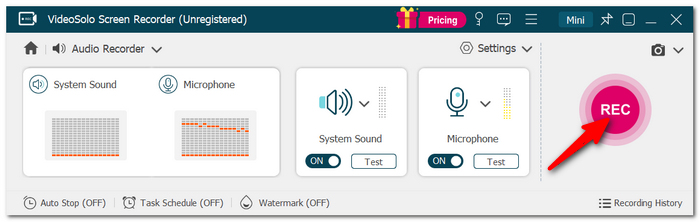
Step 5. Click Stop after you finish. Check over the recording and store it on your hard drive.
If you need to know how to record sound from a computer, this method is much simpler than trying to configure legacy Windows audio options manually.
Part 3. Advanced Third-Party Alternatives for Specialized Creators
Option 1. Audacity – Best for Open-Source Audio Recording
OS Requirement: Windows, macOS, Linux, and BSD.
Audacity is an open-source program that is available for free for both audio recording and editing, and it is capable of recording computer microphone as well as system sound input if the right input sources are selected.
Step 1. Launch Audacity on your Windows computer. Open the Audio Setup menu.
Step 2. In the Host section, pick Windows WASAPI rather than using MME.
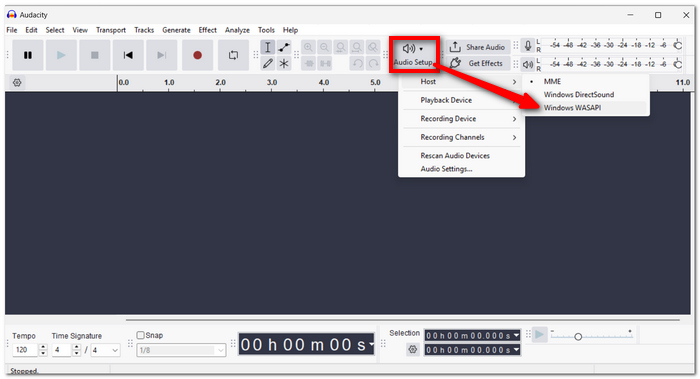
Step 3. Set your recording input to the computer's playback device that includes loopback in its name.
Step 4. Check that your selected playback or output device is working well for your system. Click on the record button and play the computer-generated audio which you want to have a record.
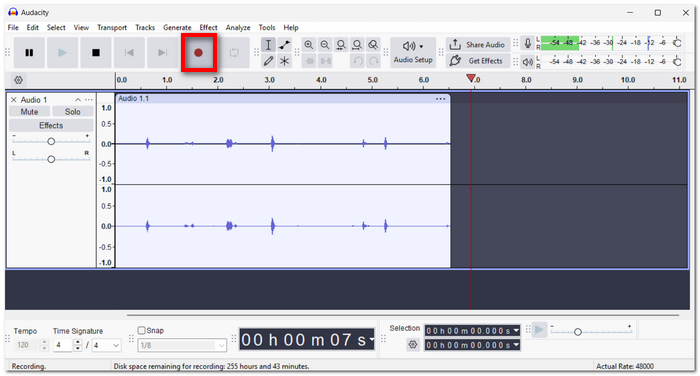
Step 5. After finishing the recording, hit Stop. Click the File button, select Export Audio from the list, and determine the file format you want.
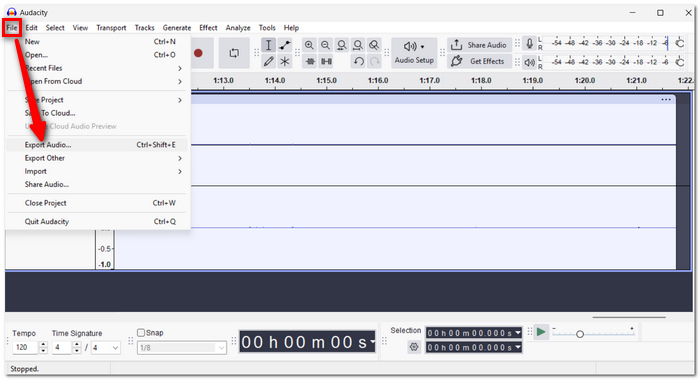
Generally, when I want to capture computer playback rather than microphone input, this is the basic workflow for recording audio on a PC with Audacity.
Limitation
Although Audacity offers me a high degree of flexibility, the interface can seem daunting to a beginner. Also, WASAPI and loopback settings should be set appropriately. If you select an incorrect host or input, you could have recording errors or no sound at all.
Option 2. Adobe Audition – Best for Professional Audio Editing
OS Requirement: Windows and macOS.
A professional audio workstation, Adobe Audition is made for multitrack production, detailed recording, editing, mixing, and restoration.
Step 1. Launch Adobe Audition, then create a new audio file or multitrack session
Step 2. Go to the Audio Hardware settings section and make sure you've chosen the right audio input and output devices in the Multitrack workspace.
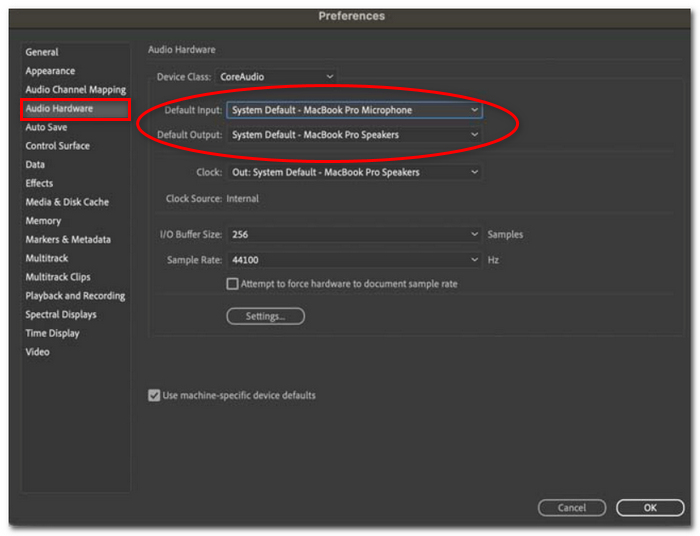
Step 3. The track's input should be directed to the relevant computer audio source or loopback device. Arm the track for recording.
Step 4. Play your computer audio that needs to be captured, and begin recording by clicking Record.

Step 5. You have to stop recording by clicking Stop. Take some time to use Adobe Audition's editing and spectral tools to remove or perfect the unwanted portions.
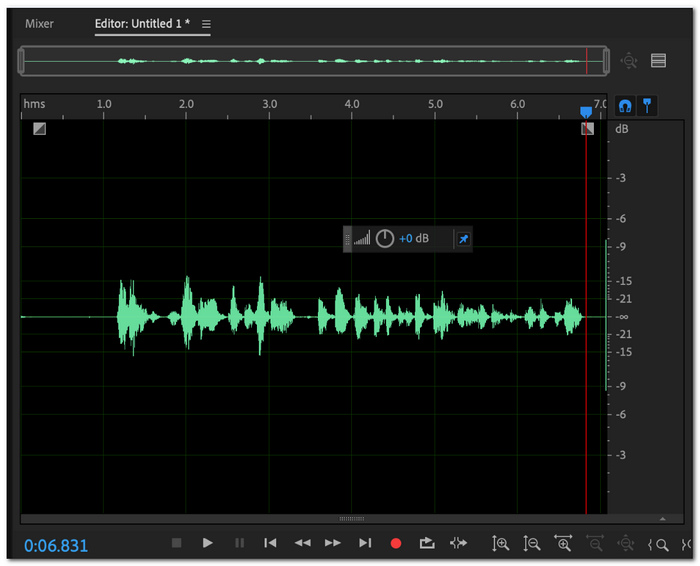
Step 6. The final audio can be exported in your desired format
Working with Audition gives me a very professional way to record audio from a computer and, at the same time, allows me to manipulate the recording in great detail.
Limitations
Audition has an extremely vast layout and could easily be too complex if all one needs is a fast recording. Besides, it is a paid software product from Adobe, so not the ideal choice for those who are not that serious about their recordings.
Option 3. OBS Studio – Best for Live Streaming and Multi-Track Audio
OS Requirement: Windows, macOS, and Linux.
OBS Studio is a free, open-source tool for recording and streaming that enables me to create custom scenes and handle several audio sources simultaneously.
Step 1. Launch OBS Studio and start a new scene.
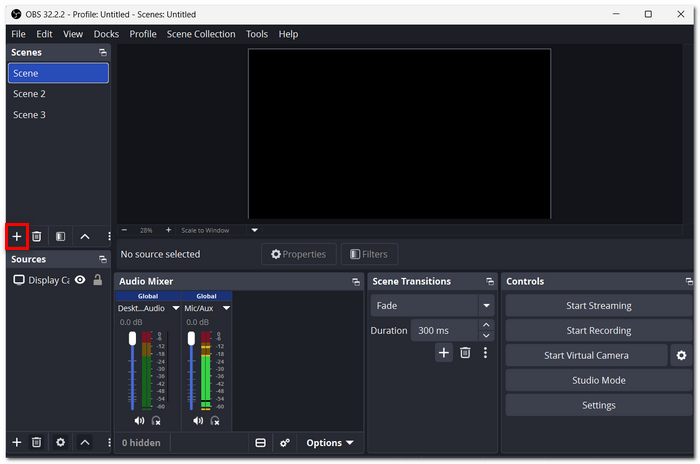
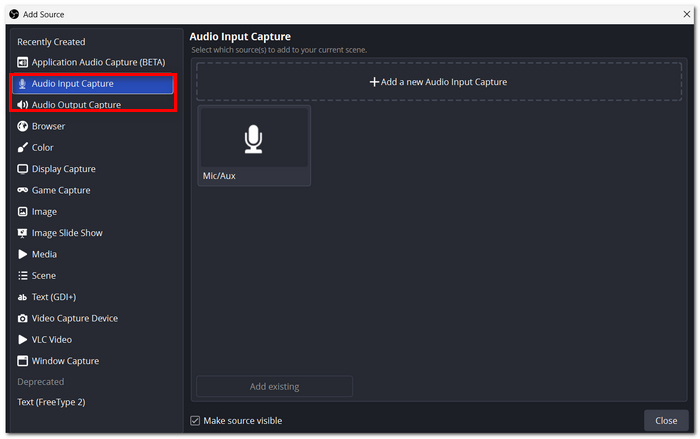
Step 2. If you're using a mic, add an Audio Input Capture. To pick up computer sound, add an Audio Output Capture.
Step 3. Launch the Audio Mixer and fine-tune all the sources independently. If you get to a level that's more advanced than a beginner, you can even send different audio sources to different tracks.
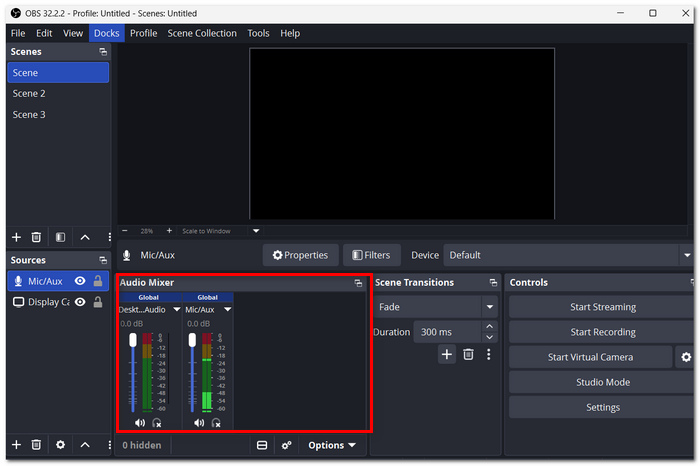
Step 4. Plug in a VST noise gate or any audio filter if you have a requirement to reduce noise instantly.
Step 5. Hit Start Recording. Listen to a music track or carry out whatever you would like to capture audio of.
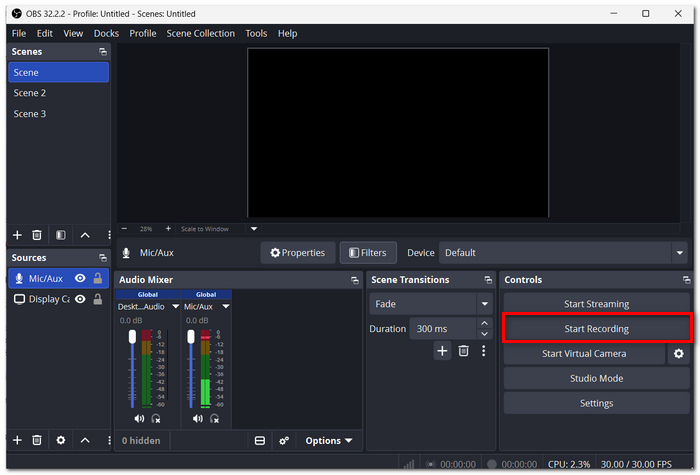
Step 6. Once finished, click Stop Recording. Take a look at your saved files, then either extract or convert them as needed.
Such configurations allow me to record sounds from the PC while handling multiple audio inputs at the same time.
Limitation
OBS Studio mainly focuses on video streaming and recording, which means that different scene sources, mixers, and settings may be quite complicated when trying to get a short audio file. In such a situation, VideoSolo Screen Recorder is by far the simplest choice, offering a very easy interface and the quickest way to get your audio recordings done.
Part 4. Troubleshooting: Fix Poor Audio Quality on PC
Even the best software can't save you from some wrong audio settings. Here are a few tricks you can use to get things sounding right if the recording isn't to your liking.
Issue 1: Why Is My Recorded Computer Audio Muffled or Buzzing?
An annoying sound like background buzzing or muffled noise can be caused mostly by microphone conflicts or background noise that you really don't need. Try disabling "Allow applications to take exclusive control" at the bottom of the advanced properties of your microphone, found in Windows Sound Settings. You can also go the extra mile by using VideoSolo Screen Recorder’s AI Noise Reduction function to effectively reduce background noise.
Issue 2: Why Is There No Sound When Capturing Internal Audio?
Verify that you've chosen the correct system audio device and that your computer's volume isn't on mute. If the audio still won't work, VideoSolo Screen Recorder has it all covered. It can take the hassle away by automatically taking care of the required audio drivers for capturing the system sound.
Issue 3: What Is the Best Sample Rate to Choose?
Setting the right one depends on the content type you are working with. 44.1 kHz can be a perfect setting when recording voiceovers and podcasts. Conversely, 48 kHz is a better option for video, gaming, and other types of media-rich content. Choosing a higher sampling rate is not always a better decision if that doesn't fit your current needs.
Part 5. FAQs on Recording Audio on PC
Is it possible to record audio when my PC is in sleep mode?
No, an audio recording session will usually require that the computer stay on. If the PC goes to sleep, the recording will typically get interrupted.
How come my recorded content has such a huge variation in speaker volumes?
It is likely that if you were recording several people or sound sources, the audio levels coming from each of them were not balanced. By individually adjusting each microphone or sound source, you can record audio that comes out with a much more uniform volume.
Is there a way to record audio without the necessity of a virtual audio cable?
Yes, you can. The audio of your system can be captured directly by Windows through some audio APIs, like WASAPI, for example. Also, special screen recording software, like VideoSolo, is capable of capturing system audio without requiring a manual virtual audio-router setup.
Conclusion
There are lots of techniques to record sound from your computer these days. The recorder that comes inside Windows can get the job done, but if you happen to be working on a real audio project, then you might go for software such as Audacity, OBS Studio and VideoSolo Screen Recorder. In the end, it is up to one's own preference whether one values ease of use over the quality of the product.
More Reading
Capture screen activities, audio, webcam, gameplay, and mobile screens on Windows and Mac with high quality.

