



 Download Screen Recorder For FREE!
I typically choose online voice recorder apps whenever I have to pick up sounds quickly without downloading new apps. Sometimes, you just need to get a quick voice note, test out the microphone before a remote call, a project, or a short audio memo. But browser-based recording isn't 100% dependable if, at any time, a weak internet connection, very limited audio settings, the basic editing tools offered by a browser, or even a frozen browser tab are the causes of the loss of a recording. Because of this, after going through several online tools in this post, I'm going to point out what the good ones do best and where they will probably be the worst. Also, I'm going to demonstrate how VideoSolo Screen Recorder can be a better desktop choice, mainly when you need more reliable recording and control.
- Part 1. Quick Overview: List of 6 Best Online Audio Recorders
- Part 2. Best Alternative for Flawless Capture: VideoSolo Screen Recorder
- Part 3. In-depth Reviews of Top 6 Online Voice Recorder Tools
- Part 4. Troubleshooting: How to Fix Common Online Voice Recorder Issues
- Part 5. FAQs about Online Voice Recorder
Part 1. Quick Overview: List of 6 Best Online Audio Recorders
Initially, I assessed the tools per my personal and straightforward criteria that I would have needed while recording browser actions quickly.
| Online Audio Recorder | Best For | Audio Quality | Format Support | Key Limitation | Pricing |
|---|---|---|---|---|---|
| Vocaroo | Quick voice notes and sharing | Basic–Good | MP3 and other options may vary | Limited editing | Free |
| Rev Online Voice Recorder | Voice recording and transcription | Good | MP3 | Mainly focused on voice | Free |
| SpeakPipe | Website voice messages and feedback | Good | MP3 | Free recordings are limited to 90 seconds | Free / Paid |
| 123Apps Voice Recorder | Simple browser recording and trimming | Good | MP3 | Ad-supported interface | Free / Paid |
| FocuSee Online Recorder | Quick, simple recordings | Good | Common audio formats | Fewer advanced controls | Free |
| VirtualSpeech | Voice practice and speaking exercises | Good | Varies by feature | More specialized than a general recorder | Free / Paid |
Summary: Vocaroo and Rev are great for creating voice clips quickly. 123Apps is good for me for basic editing. For advanced recording features, I'd opt for a desktop recorder like VideoSolo Screen Recorder.
Part 2. Best Alternative for Flawless Capture: VideoSolo Screen Recorder
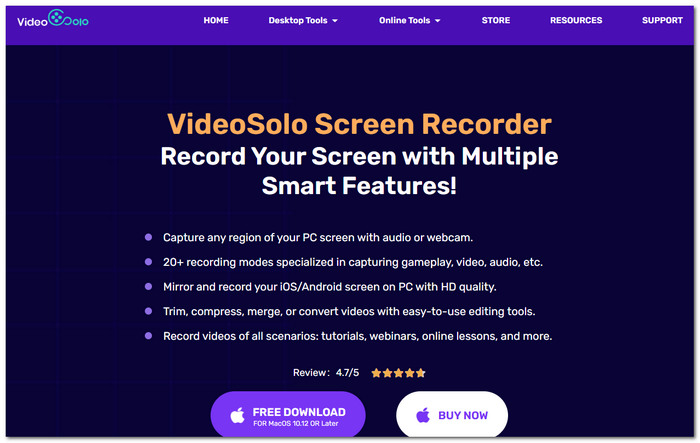
If I really needed a more reliable recording tool than a browser-based one, I would go for VideoSolo Screen Recorder as my desktop choice. It allows me to capture my computer's built-in sound, microphone input, or both at once in a single recording. So, unlike using a browser extension, I get to decide where my audio should come from.
Core Competitive Advantages
- • Hybrid source recording: I'm able to record internal computer audio, microphone, or both at the same time. It makes it ideal for online meetings, tutorials, music sessions, and other types of recordings.
- • Disk-based recording: The software is locally installed on my computer, and I can use the program even if I don't have internet or if the browser is not running. So, it's independent of online presence or the running state of the browser.
- • Enhanced local audio features: Noise cancellation, fine-tuning recording quality, scheduling, previewing, and cutting of recorded material with a minimum set of functions.
- • File conversion: It further equips me with converting and compressing files so that I can tailor the recordings based on the usage and format.
User reviews: The feedback is a bit of a mixed bag, so I would definitely not label this as universally perfect. Some Trustpilot users love the software's useful features and supportive service, while others are upset about billing or licensing problems. In particular, there's a reviewer who highlighted that their screen recorder helped them record their online classes for later watching, and they loved the audio-only recording feature.
My opinion: VideoSolo Screen Recorder is the best one for taking quick notes. However, if I need reliable local software with which I can manage my audio files, this is my top pick!
Part 3. In-depth Reviews of Top 5 Online Voice Recorder Tools
1. Vocaroo – Best for Instant Voice Sharing
Best For: Making quick voice records, completing classroom assignments, and sending short audio messages without creating an account.
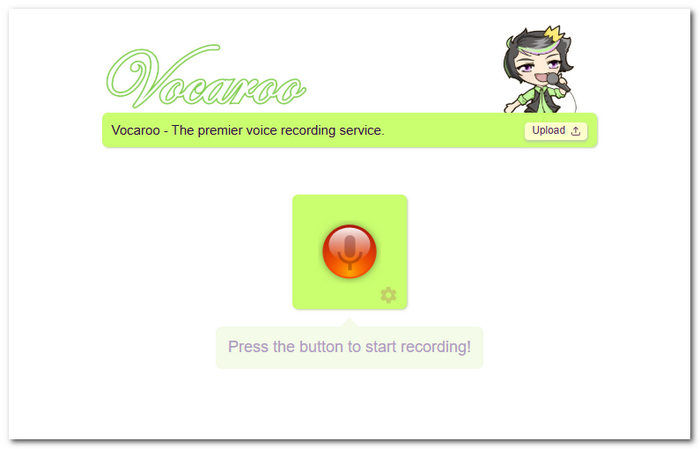
Vocaroo is a browser application that allows me to record my voice via the microphone and right away share the recording via a link or a QR code.
 pros
pros
- There is no need to create an account or install the application.
- One can share the link or the QR code.
- It is absolutely free to use.
 Cons
Cons
- There is a lack of more sophisticated audio editing.
- Audio files aren't meant to be kept forever and can get deleted once there is no activity for a long time.
Testing Experience: I got totally addicted to the Vocaroo online voice recorder. It's so easy to use that I literally could record and save an audio file in seconds just by visiting the website. That tool would be perfect for capturing spontaneous voices.
2. Rev Online Voice Recorder – Best for Voice Recording and Transcription
Best For: Audio recordings that you can edit later on as text.
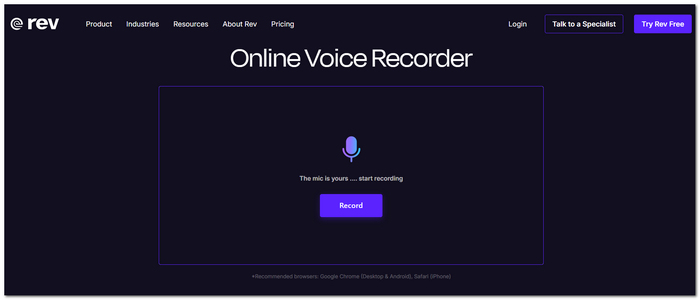
Online Voice Recorder on Rev is a totally free audio recording software that you can use right now in any browser, and you won't need to install any plug-in or program. Audio recording is possible through a microphone. I can preview, trim, and download the recording in MP3 format and optionally send it for transcription.
pros
- Recording directly in the browser without needing to install anything.
- You can preview and trim the audio clips before you even download them.
- Quick, hassle-free choice, mostly for people needing text versions of their voice notes.
Cons
- This is best for recording your own voice through a mic, and it doesn't support recording other audio coming from your PC.
- You need to pay extra for the transcription service.
Testing Experience: I found Rev to be a very quick and easy-to-use voice recording tool. The trimming functionality is great for tidying up a recording before saving, and the transcription feature greatly increases the usefulness of the tool for things like interviews, meetings, and voice memos.
3. SpeakPipe Online Voice Recorder – Best for Collecting Voice Feedback
Best For: Content creators who blog, podcasters, and companies that want to let their website visitors record and leave voice messages via the site.
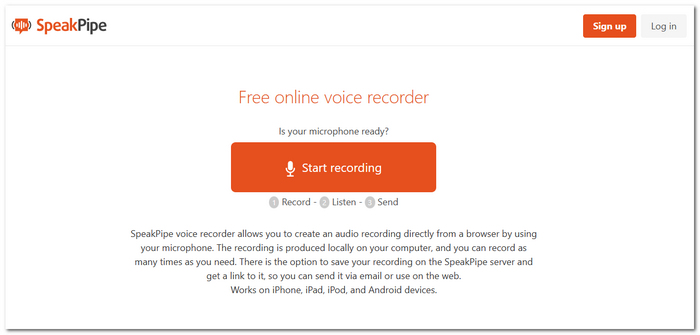
SpeakPipe online voice recorder is a web-based voice recording service that can be integrated into your website through a widget. Your visitors do not need a SpeakPipe account to leave their recorded messages with you.
pros
- Decapsulation is easy to embed in blogs and web pages. There is an option to email a voice message.
- Users can post a voice message to the hosts without login information.
- Received recordings are stored at the base station in a dashboard.
Cons
- The free plan has a duration of 90 seconds of recordings and contains 100 MB of storage.
- It's catered toward collecting audio messages rather than recording lengthy and high-quality audio productions.
Testing Experience: Speakpipe is a better way to get an interactive audience rather than normal voice memo recordings. It's pretty effortless for visitors with a widget to leave feedback or podcast messages. However, because of the limited, short, free voice recording time, it would be less suitable for long recordings.
4. 123apps Voice Recorder – Best for Quick and Simple Recording
Best For: Users who are interested in using a free online voice recorder for a microphone recording session and don't have the patience to wait for a program installation.
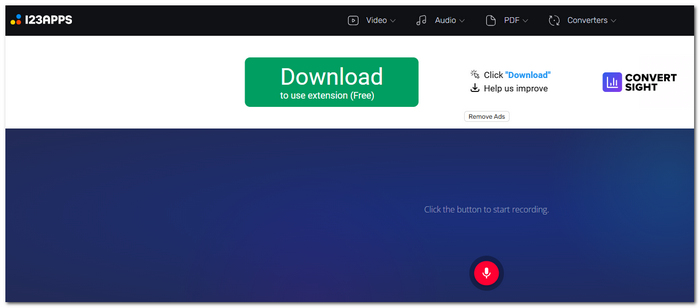
123apps Voice Recorder is one of the easiest online voice recorders that you can find. It allows me to record audio from the microphone, trim the recording, cut out the silent sections, and export the file as an MP3. Besides that, it also offers basic controls for your microphone.
pros
- It is available free of charge, and one can get started easily with a browser.
- It automatically identifies and deletes sections with no sound.
- It has trimming features and also the option to change your microphone.
Cons
- It has been mostly optimized for recording with a microphone, but not system sound.
- The browser or a slow internet connection might influence the result in case a very large recording is made.
Testing Experience: 123apps is one of my best apps for the purposes of voice memoing or doing any quick recording and adding some minimal edits. The feature that removes silence automatically is one of my favorites since it saves me the trouble of finding the bits where I am quiet and cutting them out manually before I finish the whole job of recording.
5. FocuSee Online Microphone Recorder – Best for Quick Browser-Based Voice Recording
Best For: Making short voice notes, doing voices, interviews, or other record types that you want to get done in my web browser.
FocuSee Online is a very simple and convenient web microphone recorder that allows me to record a voice without the need to have any software running on my computer or even to create a user profile.
pros
- There's no need to install any software or create a new account.
- It's free, and you can use it to record without worrying about watermarks or ads.
- It will let you record sessions that last no more than 60 minutes.
Cons
- Pretty much, it's about a voice recorder rather than a tool for high-quality sound processing.
- Mobile recording is not available as of now, and you have to use your desktop computer or laptop browser only.
Testing Experience: I really like the quick voice recording feature offered by FocuSee Online. The whole process calls for allowing microphone use, pressing Start, speaking, and finally pressing Stop when finished. After recording, I can easily transfer the file to my computer, which gives it added convenience for someone like me who only uses it for occasional voice recording through internet-based software and does not prefer to go through the hassle of installing an external program.
6. VirtualSpeech Online Voice Recorder – Best for Private Voice Recording
Best For: Anyone who wants to record their voice online while keeping the recording on their own device.
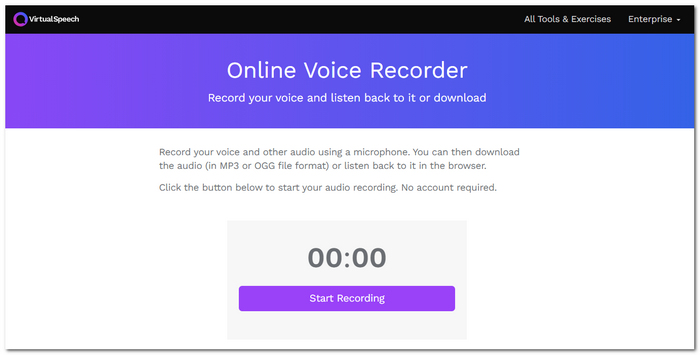
VirtualSpeech Online Voice Recorder is an example of a website that offers a voice recording feature through the browser that you can use to record your own voice. You do not need to log in or install any extra programs in order for it to work. The recorded voice can either be played back directly via a browser window or downloaded as an MP3 or OGG file.
pros
- One can just get on the website and begin practicing without having to create an account or install anything on the device.
- The audio files you capture will only be played on your device and will not be uploaded to VirtualSpeech's servers.
- You can download the recording in MP3 format as an option or OGG format, whichever you prefer.
Cons
- The product works very well with microphone inputs but is not quite as good for other input types.
- There are no editing or system-audio recording features here at all.
Testing Experience: VirtualSpeech seemed very privacy-conscious as far as I experienced it through testing. I could allow the microphone to be used, start recording, hear what I recorded, and get hold of the file by simply downloading it without having to go through an internet dashboard. To make short voice notes, it really is a matter of keeping things as basic as possible.
Part 4. Troubleshooting: How to Fix Common Online Voice Recorder Issues
Issue 1: Mic Not Detected or Permission Denied
If you run into issues with the microphone while using a web-based recorder, it could mean that the application is not allowed to use the microphone. One such reason is that your browser may have denied microphone access. In that situation, the first thing would be to look at your pc/ phone permission settings and then shut down your browser and start recording after a fresh browser launch.
On Windows:
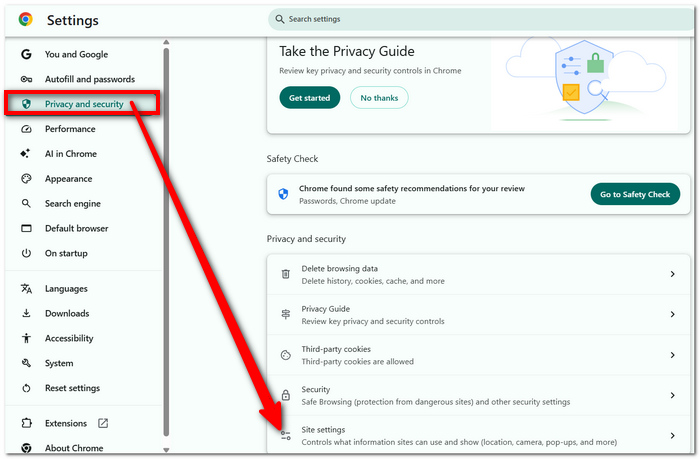
Step 1. Open the Settings menu on the desktop. Click on Privacy & security >Microphone under Settings.
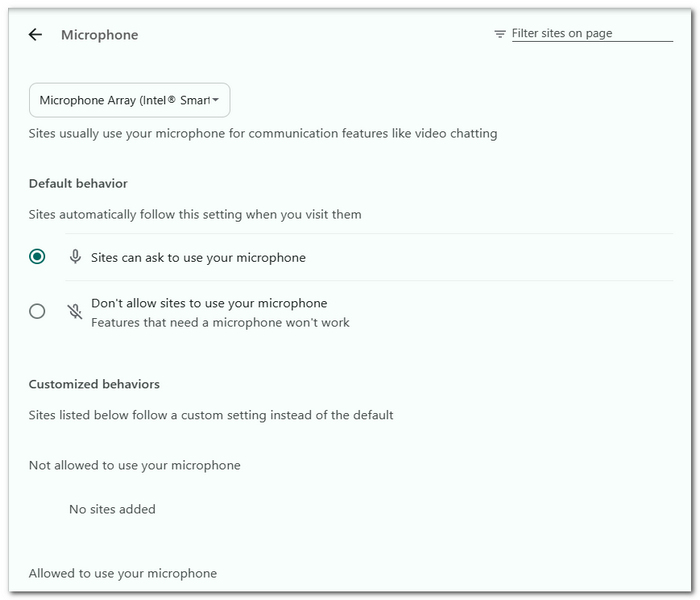
Step 2. Enable the Microphone access feature. Ensure that allowing desktop apps to use your mic is enabled.
Step 3. Launch your browser once again. Go back to the online recorder and click on microphone permission when requested.
On Mac:
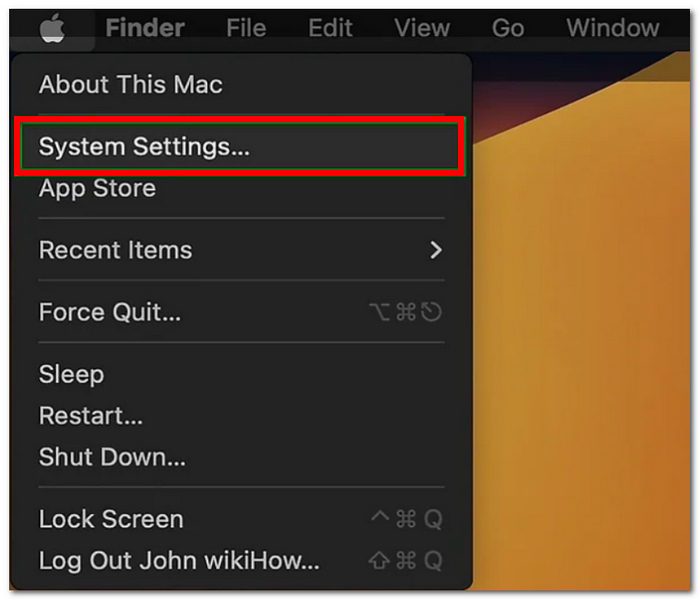
Step 1. From the Apple menu, choose System Settings.
Step 2. Go to Privacy & Security and select Microphone.
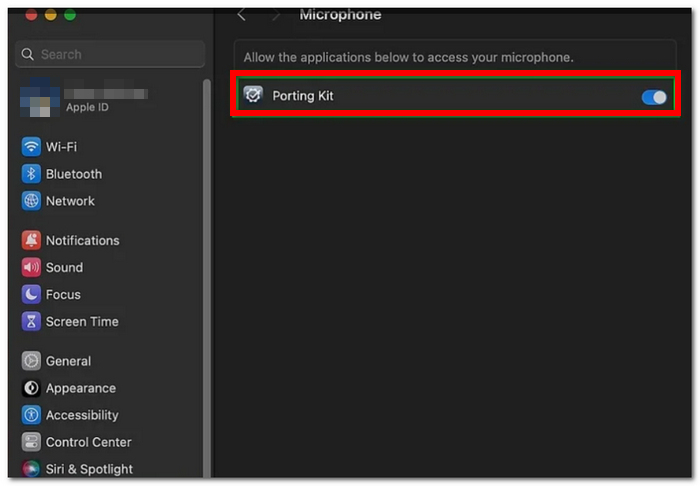
Step 3. Allow the browser, for example, Chrome or Safari, to access your microphone. Quit the browser and restart it.
Step 4. Launch the online recorder once more and grant access to the microphone when asked.
Issue 2: Muffled or Low-Quality Voice
If your voice on the recording is muffled, flat, or processed differently than expected, Windows audio enhancements may be modifying the microphone signal before it goes to the browser. You might be able to achieve a cleaner and more natural-sounding voice by recording without turning these settings on.
On Windows:
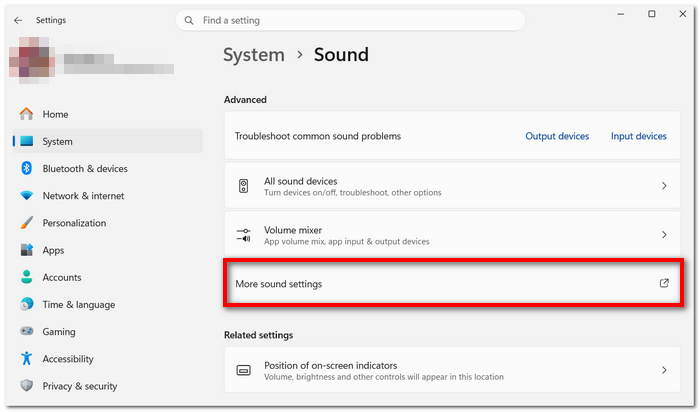
Step 1. Right-click on the sound notification on your taskbar and then choose Sound settings.
Step 2. Scroll all the way down until you see More sound settings. Click on it.
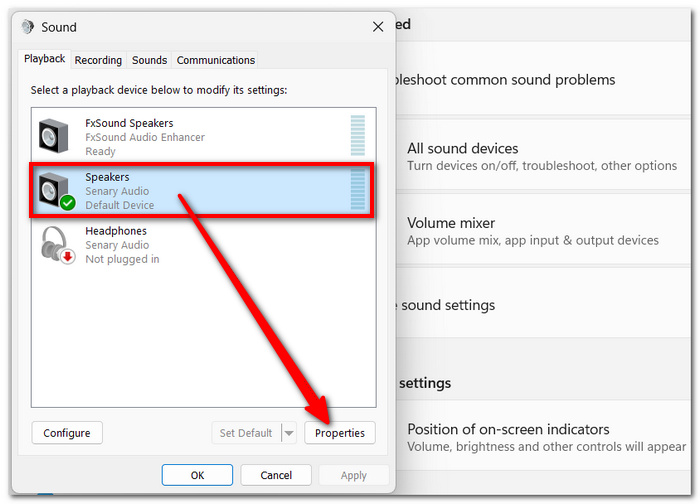
Step 3. You will see a tab for Recording on the left panel. Choose the microphone you wish to use and click Properties.
Step 4. Your choice will be the Advanced tab or the Enhanced tab based on the operating system you have installed. If you came across Enable audio enhancements, deactivate it by flipping the toggle or unticking it.
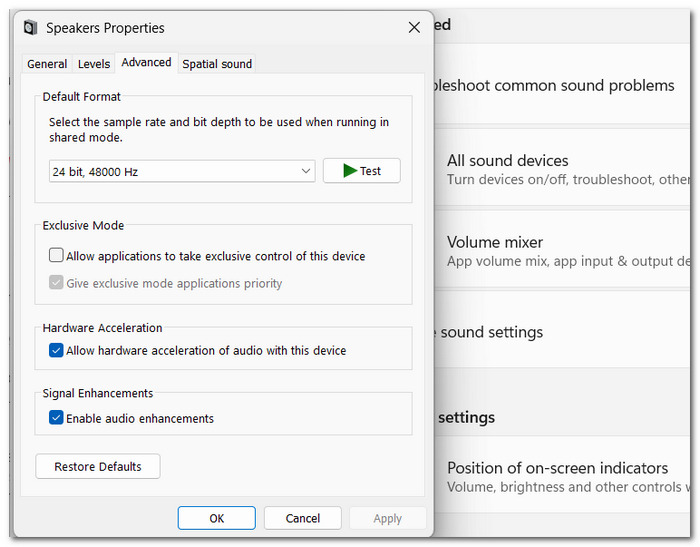
Step 5. Save your modifications by clicking Apply and then OK. Once you are done with this, restart the same browser you were working in earlier and take the test through an online recorder.
 Tips
Tips
Different names and positions of the options may be possible based on the microphone driver and your Windows version. If "Enable audio enhancements" is missing, the chances are that the setting "Audio Enhancements: OFF" is a similar option.
Issue 3: Browser Tab Freezes or Recording Gets Lost
Browsing while recording long sessions can put more strain on your browser and possibly cause a browser freeze or crash, which could result in losing the recording with it. Such scenarios can happen mostly when many other tabs, extensions, and apps are consuming memory at the same time. This highlights the limitation of using a webpage-based recorder for long recording sessions.
Tips
If I'm planning to use VideoSolo Screen Recorder and it's going to be for a longer or more important recording, there's actually one big advantage that desktop recorders give, which is that you don't run the risk of losing the recording just because the tab that hosted the recording freezes or crashes. The desktop recorder will run independently of what happens in the browser, and if it freezes or crashes, there is still a recording happening on the desktop that you can rely on to get the job done, even if it is a very important one.
Part 5. FAQs about Online Voice Recorder
Can I do a voice recording with someone else on the speaker through my computer?
Mic-only online recorders tend to capture whatever mic is active and no sound that comes from within the computer, for example, through a browser. To have both, system-audio capture has to be a feature of the tool used.
How would it be if I close the browser right after my recording is done?
Closing the browser would delete the temporary recording if it hasn't already been downloaded. For really important sessions, it's better to download the file right after finishing the recording or at least don't depend on a browser alone for storing it.
To what extent am I late with my online recording?
Different factors like the browser, microphone, or speakers themselves contribute to a sound lag. Delay may be even worse with Bluetooth mics than with regular mics.
Conclusion
Online voice recording tools allow you to easily record voice online without any installation, in particular for quick notes, interviews, and simple recordings. But if you need to do longer recording sessions or have higher-quality audio, a desktop recorder like VideoSolo Screen Recorder will be a better bet for you.
More Readings
Capture screen activities, audio, webcam, gameplay, and mobile screens on Windows and Mac with high quality.

