



 Download Screen Recorder For FREE!
Expert Verdict: Although it is still the most solid free, open-source, and capable tool when it comes to recording quality videos from the webcam or the screen, OBS Studio can be very intimidating to new users. Yes, it is not the most user-friendly one for beginner recordings. It has a steep learning curve, as it does not have any built-in editing tools and sometimes produces black-screen recordings. VideoSolo Screen Recorder is an easier alternative for recording from the screen.
Looking for free screen recording but can't quite afford the costly packages? OBS Studio is one of the favorite free programs, but getting the settings right when you're just beginning can be hugely confusing. In this post, we'll show you how to record your screen with OBS, from setting up your sound and screen to actually producing your first recording. We'll also overview some common problems and have a quick look at a simpler alternative to OBS.
OBS Studio vs. VideoSolo Screen Recorder
Before we dive into the actual recording steps, here's a brief comparison of how these two tools handle the features that matter most when you record your screen.
| Feature | OBS Studio | VideoSolo Screen Recorder |
|---|---|---|
| Interface learning curve | Steep | Easy |
| Built-in video editor/trimmer | No | Yes |
| Custom recording area | Requires scene/source setup | Directly drag and select the area |
| Automatic audio noise reduction | No built-in automatic option | Yes |
| Best suited for | Advanced users, streamers, and detailed setups | Beginners and everyday screen recording |
Major differences: OBS offers a higher level of control, but that level of control increases the complexity of the setup process. VideoSolo, though, leans toward providing a fast setup process with editing and sound-boosting features built into its workflow.
Part 1. Why Use OBS Studio for Screen Recording?
One reason I chose to use OBS Studio is that it's free, open-source, and comes without watermarks like some other free screen recording tools. It also offers a high level of customization for your recordings.
What Makes OBS Useful?
- • Very customizable layouts: Arrange your scenes and sources any way you want to pick what to record.
- • Several sources: Record simultaneously. Your screen, your camera, your microphone, any other video source or audio source.
- • Hardware encoding: It makes use of your graphics processing unit's hardware encoder to output high-quality recordings and be easier on your CPU.
The downside of this is that it may take some time to learn OBS. Selecting incorrect source, display, or encoding settings may cause lag, performance problems, or even a black screen.
Next, we'll go through OBS basic setup one by one. We also provide you with a very simple and easy-to-use, all-in-one screen recorder, VideoSolo Screen Recorder, as an alternative.
Part 2. Step-by-Step: How to Record Screen with OBS?
While OBS Studio offers you a lot of flexibility, the setup can be a little complicated at first. Here are the 3 issues new users have reported facing before they begin recording:
- • Steep learning curve: Over time, you may find that you have to spend a lot of time acquiring a range of different scene sources, encoders, and audio settings.
- • Black screen troubleshooting: Game Capture or Display Capture might give you a blank preview when it's choosing an incorrect source or graphics options.
- • Clunky cropping controls: You won't simply be dragging a box around your recording. Instead, you will drag the source itself within the OBS backdrop canvas.
How to Record Your Screen with OBS
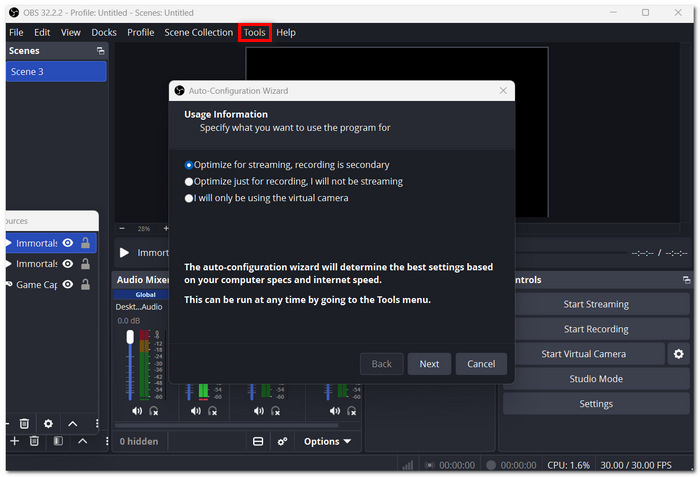
Step 1. The first time you run OBS, have the wizard optimize the basic recording settings for your computer. This is also available through the Tools > Auto-Configuration Wizard menu.
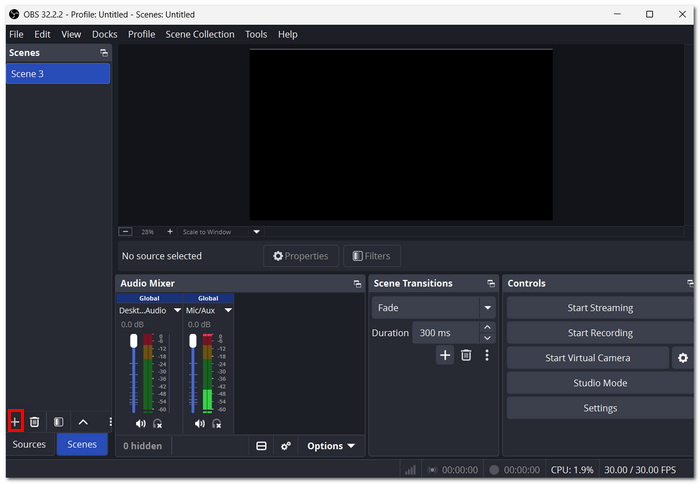
Step 2. OBS always begins with a scene you can use. If you want to add a new scene, select the + button below Scenes and give it a name.
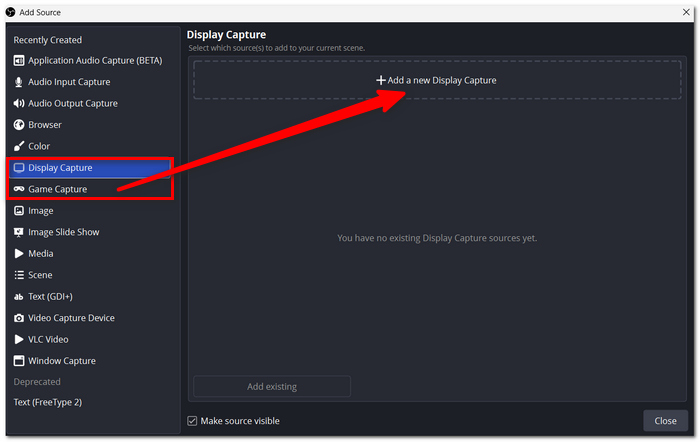
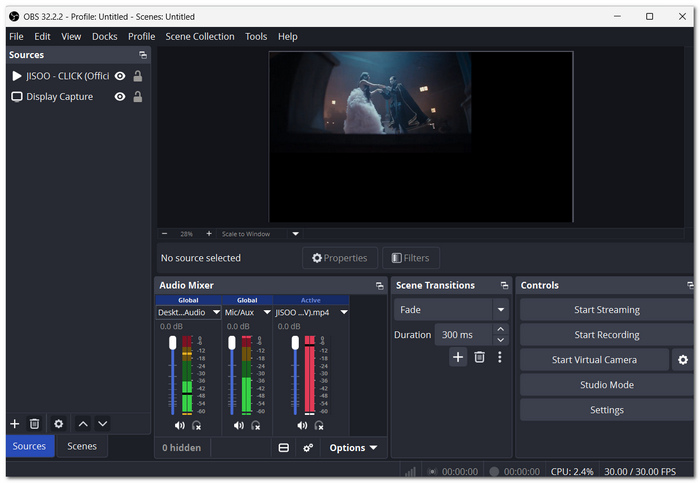
Step 3. Extract from the Sources menu and click +. From there, selecting Display Capture will allow you to record your desktop. To catch games, select Game Capture from the list. It was designed for capturing Windows games quickly, perfect for learning to use OBS to record games and voice audio.
Step 4. Test the Audio Mixer and ensure that the desktop audio and microphone volume indicators are moving. If they are not, navigate to Settings > Audio and choose the appropriate devices.
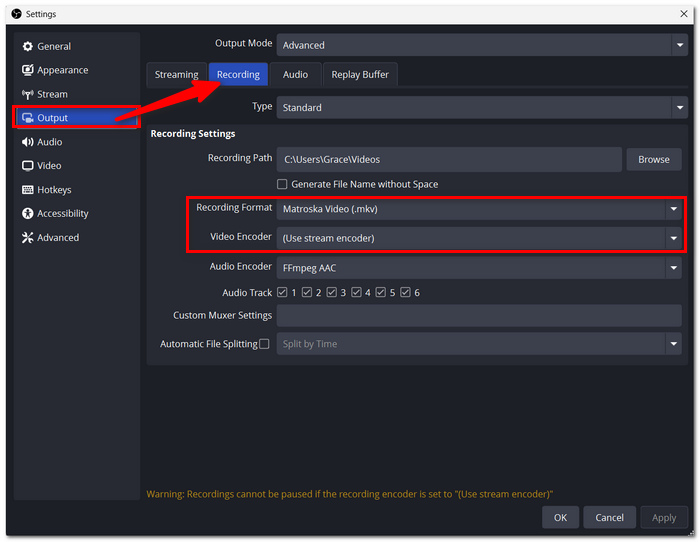
Step 5. Head to Settings > Output > Recording. Select your preferred recording location, quality, and encoder. At this time, MKV is the safest form of video recording.
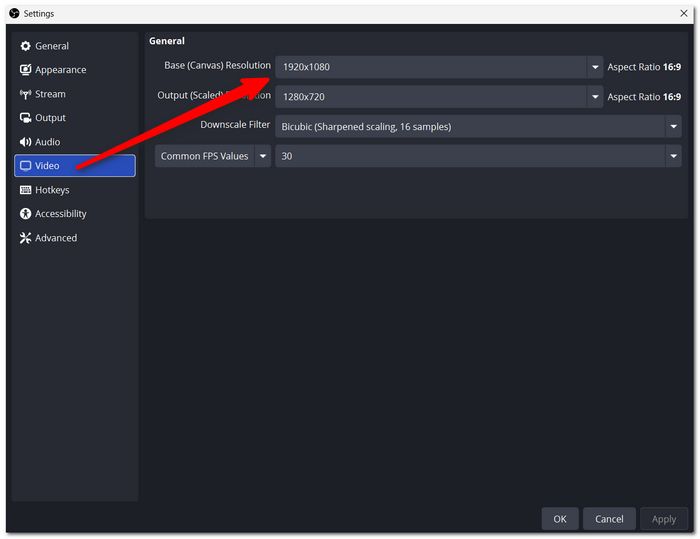
Step 6. Visit Settings > Video, then select your preferred resolution and frame rate. Remember, 60 FPS for gameplay may look more fluid, but it is more GPU-demanding.
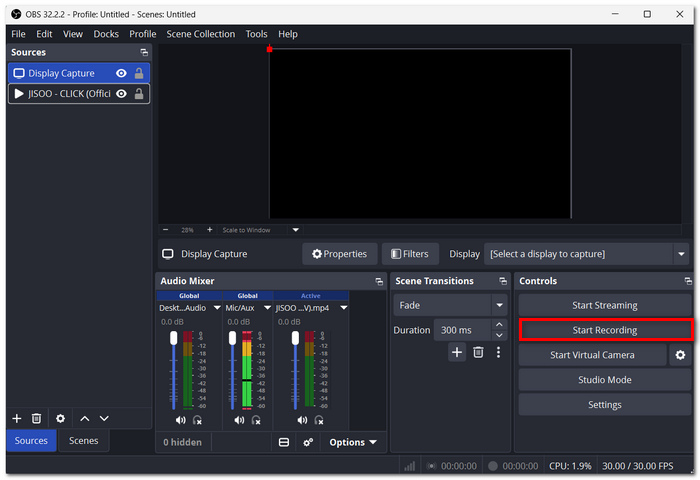
Step 7. Click Start Recording in the Controls panel, then perform the actions that you want to record in your screen capture or gameplay.
Step 8. When you're done, click Stop Recording. It's helpful to re-listen to the file after a short recording and before doing a longer one to ensure that both video and audio recording were successful. In fact, OBS itself recommends trying out your setup before your first big recording. If you think using OBS is complex, you can also try the following or other OBS alternative.
Part 3. Best Alternative to OBS: VideoSolo Screen Recorder
If you find OBS too difficult or time-consuming, a comparatively easy-to-use regular screen recorder for daily use is the VideoSolo Screen Recorder. You can concurrently record sound from the system, microphone, or both.
Best for: Beginners Who Want a Faster Setup
VideoSolo Screen Recorder is great when you need to record tutorials, web-based classes, gaming, presentations, and other needs where “just choose what to record, and go." It also has features like trimming, compressing, merging, and converting recordings later, so you don't need to first move the file to another editor.
 Features
- Record the entire screen, a window, or a region of your choosing.
- Capture either source by itself or in combination.
- Record gameplay up to 4K/60 FPS.
- Prevents jagged edges and buzzing sounds.
- You can then trim, split, merge, compress, and convert the recordings.
How to Record Your Screen with VideoSolo Screen Recorder
Step 1. Launch VideoSolo Screen Recorder and click on Screen Recorder.
Step 2. Select whether you want to record the Full Screen, a window, or a custom area.
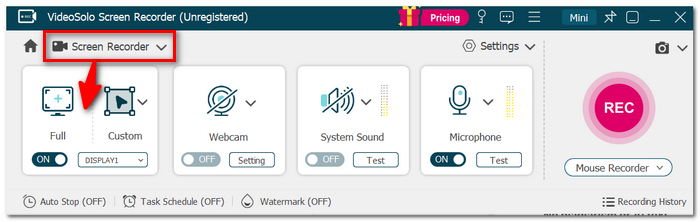
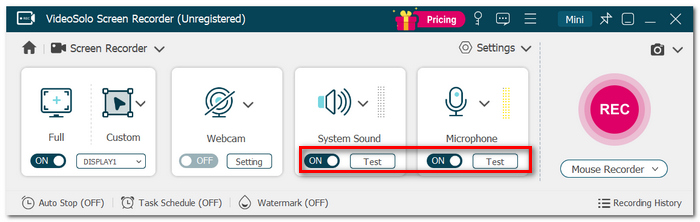
Step 3. Switch on the system sound, microphone, or both, if you intend to record your voice.
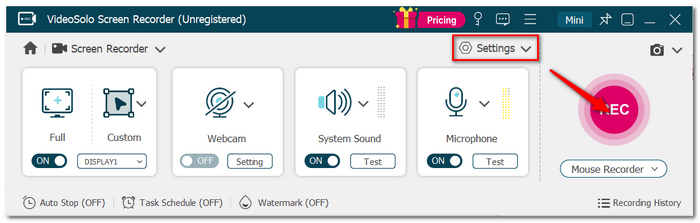
Step 4. Modify video and audio settings as desired. Directly click REC to start recording.
Step 5. Once complete, tap the Stop icon. Listen through your file and use the trimming tools if you wish to delete anything. Save your file with a new name.
User Review
The thing I like is that very little configuration is necessary to actually begin using VideoSolo Screen Recorder. When working with OBS, the user generally has to worry about scenes, sources, and various recording configurations before they can begin capturing. It seems much simpler. Just choose what you want to record, select the audio you want to use, and hit record. The built-in editing options are an added bonus when only making a few simple edits before saving the desired output video.
Part 4. FAQs on Recording Screen with OBS
Can OBS record only the audio from one application?
Yes. OBS supports Application Audio Capture, which lets you isolate audio from a particular application instead of capturing everything playing on your computer.
Can I start and stop OBS recordings without clicking the interface?
Yes. You can assign custom hotkeys for starting and stopping recordings, switching scenes, muting audio sources, and other actions. This can be particularly convenient when you're recording something where you don't want the OBS window visible.
Why does my OBS recording have multiple audio tracks but my video player only plays one?
That's normal. Standard video players may only play one audio track at a time, while compatible editing software can access the separate tracks individually. If you want everything to play normally in a regular player, OBS recommends keeping all relevant sources on Track 1 as well.
Can OBS keep the last few minutes of my screen activity without recording everything?
Yes. The Replay Buffer can continuously keep a short portion of recent footage in memory, allowing you to save the recent footage when something worth keeping happens. You can assign a hotkey to save the buffer.
Conclusion
You should have a better understanding of how OBS recording works, familiarize yourself with the setup, and avoid typical bugs like no sound or a black screen. When you find it difficult to use OBS, VideoSolo Screen Recorder offers an easier option to complete the task with much less hassle.
More Readings
Capture screen activities, audio, webcam, gameplay, and mobile screens on Windows and Mac with high quality.

