



 Download Screen Recorder For FREE!
Brief Summary
PC & Mac (Best Quality): Use VideoSolo Screen Recorder for 4K video, noise cancellation, and seamless dual-channel audio (system sound + mic).
Windows Built-in: Use Xbox Game Bar (Win + G) for quick screen captures without installation.
Mac Built-in: Use QuickTime Player (Shift + Command + 5), though external setup is required for system audio.
iPhone & Android: Use the native Control Center or Quick Settings screen recorders, ensuring microphone audio is toggled on.
For security reasons, WhatsApp hasn’t offered a built-in recording feature for video calls. Are you also struggling with how to record WhatsApp video calls with friends and family, or important meetings? This guide will provide you with a detailed tutorial on recording high-quality video calls with all audio sources on Windows, Mac, and mobile.
Note
Recording video calls involves privacy issues, so you’d better inform the participants in advance. Recording without permission is illegal, and the specific rules vary by country and region.
Quick Comparison: WhatsApp Call and Video Recorders
| Tool | Supported Platforms | Audio Clarity | Resolution & Performance | Recording Limits | Key Advantages |
|---|---|---|---|---|---|
| VideoSolo Screen Recorder | Windows 11/10/8.1/8/7/Vista/XP, macOS 10.12~27 | System Sound + Mic | Up to 4K / 60fps, Zero Lag | No Watermark, No Time Limit, but output is 3 minutes in the free trial | Noise Reduction, Phone Mirroring, Scheduled recording |
| Xbox Game Bar | Windows 10/11 | System Sound + Mic | 1080p / 30fps-60fps | 4-Hour Limit per Clip | Built-in, No Download Needed |
| QuickTime Player | macOS | Mic Only (Requires extension for System Audio) | Up to Native Display Resolution | None | Built-in macOS Utility |
| iOS/Android Screen Recording Tool | iOS / iPadOS; Android 10+ | Mic + Speaker | Native Screen Resolution | High Battery & Storage Usage | Built-in Control Center Feature |
Record WhatsApp Video Calls on PC & Mac
VideoSolo Screen Recorder (PC & Mac)
Recording with desktop software have more advantages over do that on your phone. You don’t have to worry about a lack of storage or overheating during long-term call recording, one that incorporates not only powerful audio processing capabilities but also a wide screen area.
VideoSolo Screen Recorder allows you to capture any activities on your WhatsApp in one click with no lag or interruptions. You can precisely select the recording area of your video interface, whether it’s the entire screen or a specific window. Even when switching to another window, no other content on the screen will be recorded.
 Features
- Dedicated screen/audio recording and more modes.
- Supports scheduled recording and automatic stop functions.
- Provides high resolution up to 4K/60FPS.
- Built-in noise reduction and voice enhancement features.
- Equipped with advanced post-editing tools.
- Various output video and audio formats.
 pros
- The images and audio are synchronized without lag.
- Recording will automatically terminate once the call ends.
- High-quality recording of every detail in the video.
- Filters out all background noise for clear dialogue.
 Cons
- No webcam shooting and noise cancellation for free users.
- Can’t record audio from a targeted application before purchasing.
How can you record a WhatsApp video call?
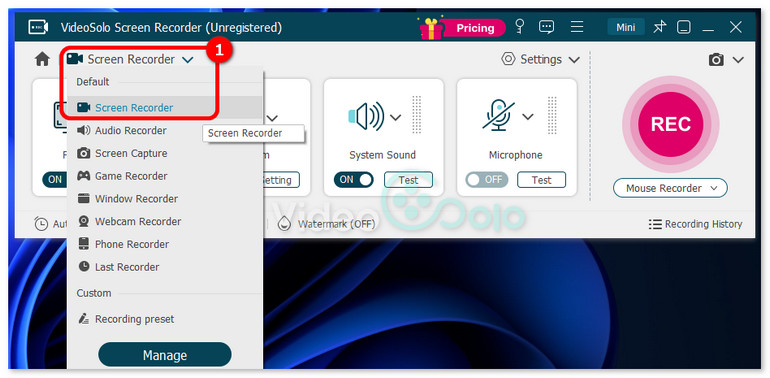
Step 1. Open VideoSolo Screen Recorder on your PC or Mac and click on Screen Recorder from the main interface.
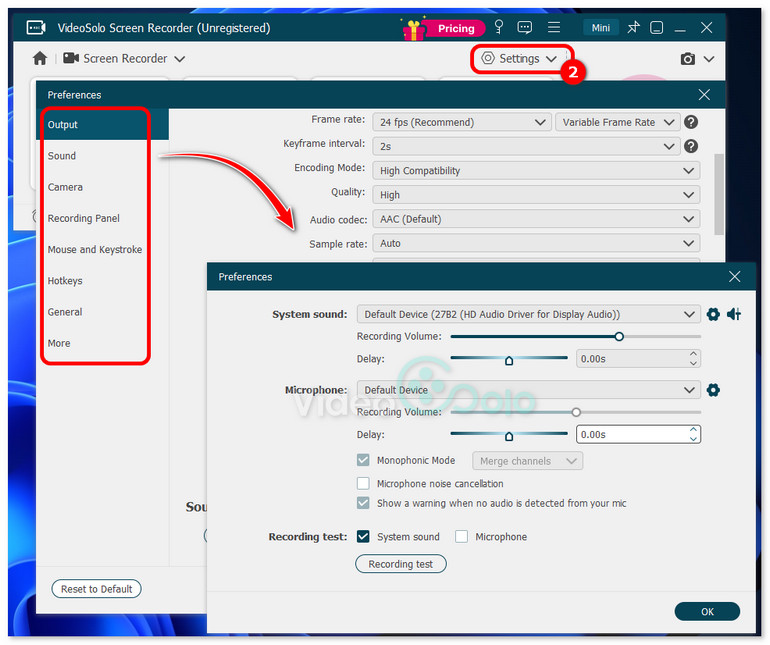
Step 2. Toggle both System Sound and Microphone to ON. Adjust the volume and other recording parameters in Settings.
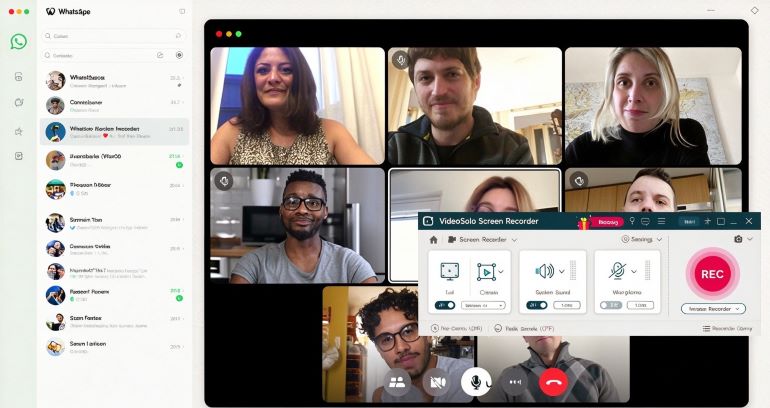
Step 3. Open WhatsApp Desktop or WhatsApp Web to lock the window. Then click the red REC button (or press hotkeys) to start recording. During the call, you can use the annotation bar to add shapes, text, or callouts in real time.
Step 4. Once finished, click the Stop button. A preview window will pop up where you can polish the video before saving it in formats like MP4, MOV, or WMV.
Windows Native Tool (Xbox Game Bar)
Xbox Game Bar has been seen as a built-in screen capture tool for recording gameplay on PC, but it can also record single desktop application windows like WhatsApp. Windows users don’t need extra downloads to capture their WhatsApp video call with system and mic audio.
Step-by-Step Guide:
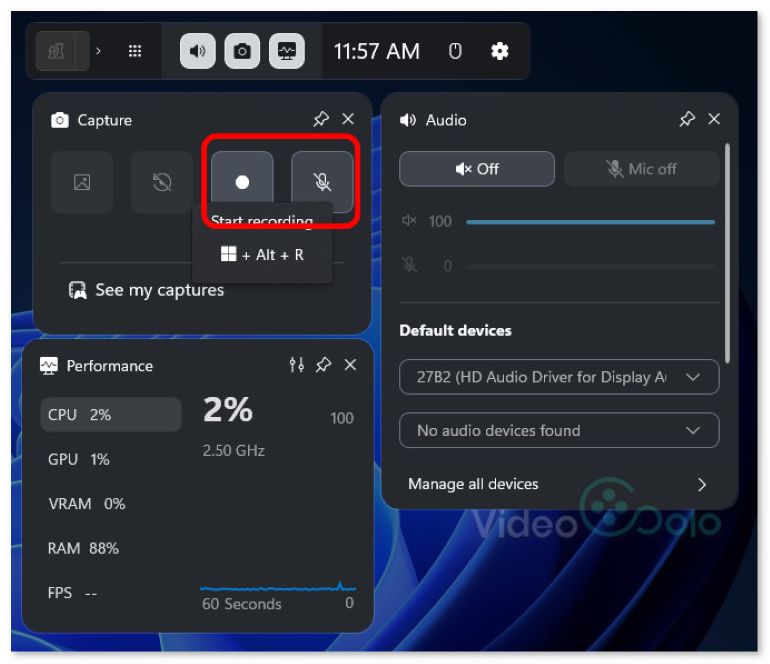
Step 1. Press Win + G to enable Xbox Game Bar.
Step 2. Under Capture in the top-left corner, make sure the Microphone icon is toggled on to capture your voice.
Step 3. Click the Start Recording button or press Win + Alt + R. Press it again to stop.
Limitations
• Xbox Game Bar cannot capture the full desktop or a custom region.
• You can’t adjust system audio or microphone sound.
• Few options to adjust video bitrate, codec, and quality; it only supports 1080p MP4.
• No auto-stop recording or video editing features.
Explore More: Xbox Game Bar Screen Recording: Setup, Fixes, and Alternatives
Mac Native Tool (QuickTime Player)
macOS offers native screen recording functions via QuickTime Player or the Screenshot Utility shortcut. But what you should know first is that QuickTime cannot capture internal system audio, which means you can’t capture the voice on the other end. For all audio source recording, you have to install third-party virtual audio routing drivers like BlackHole, or use professional software like VideoSolo.
How to record a video chat on WhatsApp with QuickTime Player?
Step 1. Press Shift + Command + 5 to open the screen capture toolbar on Mac.
Step 2. Choose Record Selected Portion and drag the frame over your WhatsApp Desktop call window.
Step 3. Click Options and choose your built-in microphone under the Microphone section to ensure your voice is captured.
Step 4. Click Record to start capture, and click the Stop icon in the top menu bar when the call ends.
Record WhatsApp Video Calls on Mobile
VideoSolo Phone Recorder Mode [Mirroring]
If you prefer to pick WhatsApp calls directly on your phone, VideoSolo provides a Phone Recorder Mode for an ideal recording experience. That way that it works is connect and mirror your smartphone to the computer desktop.
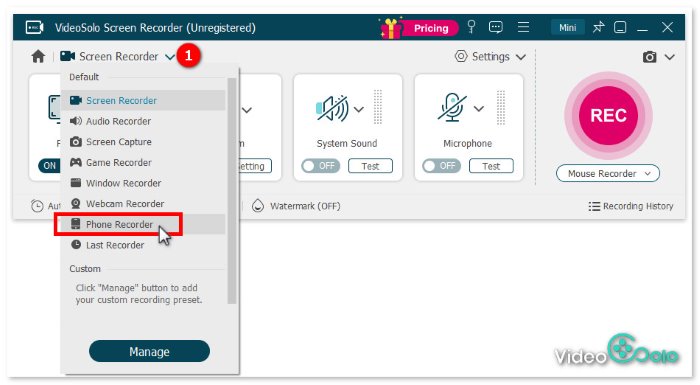
Step 1. Open VideoSolo Screen Recorder and choose Phone Recorder mode in the main interface. You can change some preferred output parameters through Settings.
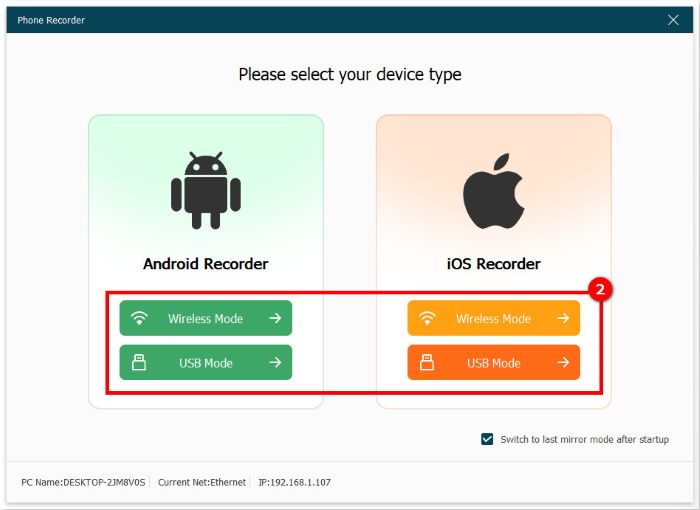
Step 2. In the pop-up window, select your mobile device and the way you want to connect to the computer, with a USB cable or wirelessly.
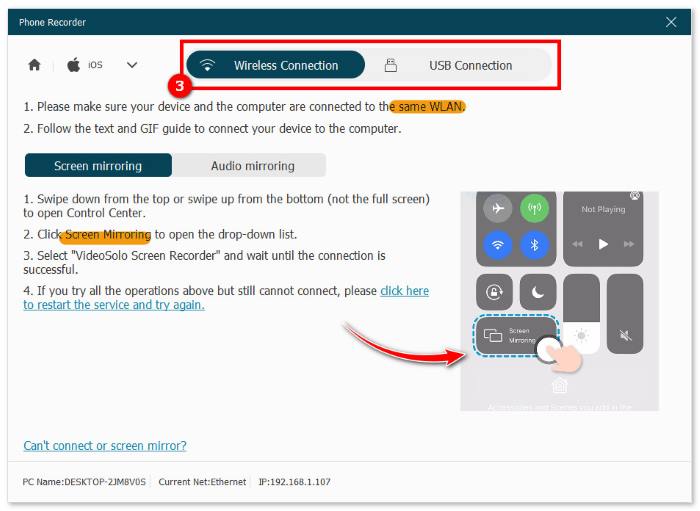
Step 3. Take iOS Recorder > Wireless Mode as an example. You can follow the tutorial to mirror your phone screen to your PC. Choose Screen mirroring or Audio mirroring with lossless quality and low latency.
Step 4. Start your WhatsApp call on your phone and click REC on your computer. The call will be captured in full high definition directly onto your local file.
Feedback
When recording, the computer maintains stable synchronization of images and audio communication. I can continue to use my phone normally for messaging or switching between applications – it doesn’t interfere with any other tasks. And I have set a start and stop time in advance, so the recording would be automatically ended and saved. No need to stay near the computer and manually operate.
Record WhatsApp Video Call with Built-in Tools
On iPhone:
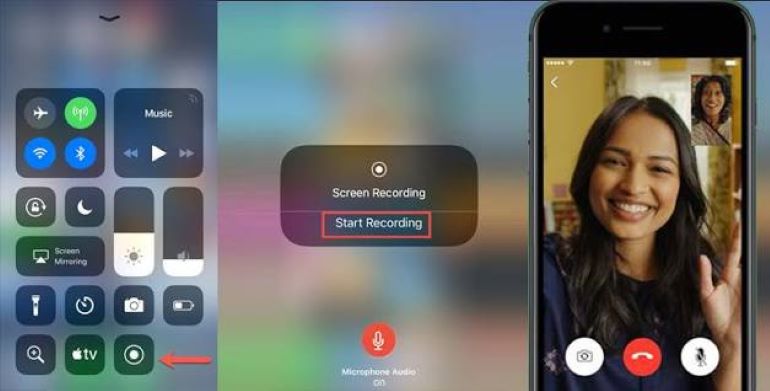
1. Add Screen Recording to Control Center: Go to Settings > Control Center, find Screen Recording, and tap the green + icon to add it to your active controls.
2. Swipe down from the top-right corner of your screen (or swipe up from the bottom on older iPhone models with a Home button).
3. Press and hold the circular Screen Recording icon until a pop-up menu appears. Tap the Microphone button at the bottom so it turns red (Microphone On).
4. Tap Start Recording after a 3-second countdown. Return to WhatsApp and start your video call.
5. When the call ends, tap the red recording status pill in the top-left corner and select Stop. The recorded video will automatically save to your Photos app.
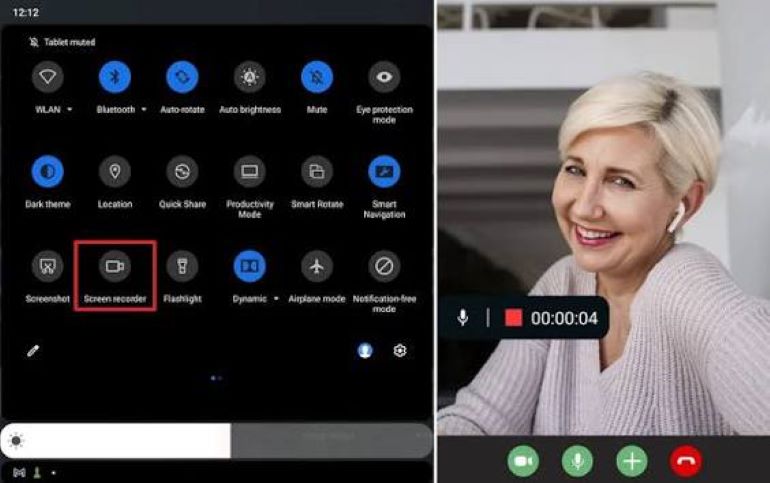
On Android:
1. Swipe down twice from the top of your screen to reveal the full Quick Settings and tap the Screen Recorder icon.
2. Select Media and Microphone to ensure both your screen and your voice are recorded.
3. Tap Start Recording. Open WhatsApp and begin your video call. When finished, tap the floating controller or swipe down your notification panel to tap Stop.
Limitations
• The entire screen content displayed, including some sensitive info, will be captured.
• Additionally, you can’t set a recording duration. If you forgot to turn it off, the recording will continue until draining the battery or running out of memory, which may cause the phone to get hot and forcing quit the recording.
• The editing tools available on the phone can only perform basic cuts. For more advanced features such as video compression, noise reduction, or audio extraction, you have to rely on third-party software like VideoSolo Screen Recorder.
FAQs on recording video chat on WhatsApp
Q1: Does WhatsApp notify the other person when you record a video call?
No. WhatsApp does not send any notification, pop-up, or alert to the other person when you start screen recording via native OS tools or screen recording software.
Q2: Why is the other person's voice completely missing?
Ensure System Sound is toggled ON in VideoSolo. If using the macOS built-in tool, check that BlackHole is properly set. If using mobile devices, go to Settings > Apps > WhatsApp > Permissions, and ensure both Camera and Microphone are set to Allow.
Q3: Is there too much noise in the recorded video?
In VideoSolo, enable the Noise Cancellation option in the Audio Preferences menu to eliminate background noise, static, or echo caused by high speaker volume.
Conclusion
Built-in screen recording tools on your computer or phone can meet the need for temporary or regular WhatsApp video call recording. For company meetings, online interviews, or other situations that require high-definition quality, professional desktop software is better. VideoSolo Screen Recorder provides you with a clear, private, and efficient recording experience.
More Reading
Capture screen activities, audio, webcam, gameplay, and mobile screens on Windows and Mac with high quality.

