



 Download Screen Recorder For FREE!
TL;DR
Discord currently does not have a native feature for recording calls. This article presents 5 possible ways to record Discord calls, including Discord bots, audio/video recording software for the desktop, helping you to address issues such as bot failures or the need for both audio and video recording. As the most comprehensive solution, VideoSolo Screen Recorder enables stable recording of audio and screen content from multiple sources without any quality loss.
Discord is where a lot of conversations actually happen—study groups, gaming teams, remote meetings, podcast interviews, and any daily deep talk. But there is no record button for something worth keeping. Without added native call recording, even the third-party bots fail regularly. If you’re looking for a safe and user-friendly Discord call recorder, we'll tell you the answer.
- Can You Record a Discord Call?
- Comparison of 4 Ways to Record Discord Calls
- Method 1: Craig Bot—What to Do When It Fails
- Method 2: VideoSolo Screen Recorder [Desktop & Mobile]
- Method 3: OBS [Open-Source]
- Method 4: Audacity [Audio Editor]
- FAQs on Recording Discord Calls
- 4 Tools to Record Discord Calls or Videos on Computer & Mobile
Can You Record a Discord Call?
Discord never provides native call recording functionality. It only has the “Buffer Clip” feature that allows you to capture up to 2 minutes of screen footage when you enable screen/application streaming. However, this does not serve as a complete call recording.
So, back to the original question: You can record Discord Calls, but all possible methods require third-party tools that are not part of Discord itself.
Comparison of 4 Ways to Record Discord Calls
| Tool | Supported OS | Main Use Case | Free to Use | Record Audio and Screen | Recording Quality |
|---|---|---|---|---|---|
| Craig Bot | Works across Windows/Mac/Mobile clients | Discord voice channel audio recording | Limited recording time; paid plan unlocks longer | ❌ Audio-only | Standard compressed voice |
| VideoSolo | Windows 11/10/8.1/8/7, macOS X 10.12~27 | All-in-one audio & screen recording | Save 3 minutes per recording in the free trial | ✅ | Lossless audio output with noise cancellation and audio enhancement |
| OBS | Windows 8.1/10/11, macOS 13.0 and newer, Linux | Advanced gameplay stream & capture | Open-source | ✅ | 320 kbps AAC Separate Audio Tracks |
| Audacity | Windows 10/11, macOS 10.11 or above, Linux | Audio capture & post-editing | Open-source | ❌ Audio-only | 32-bit float, 48,000 Hz |
Method 1: Craig Bot—What to Do When It Fails
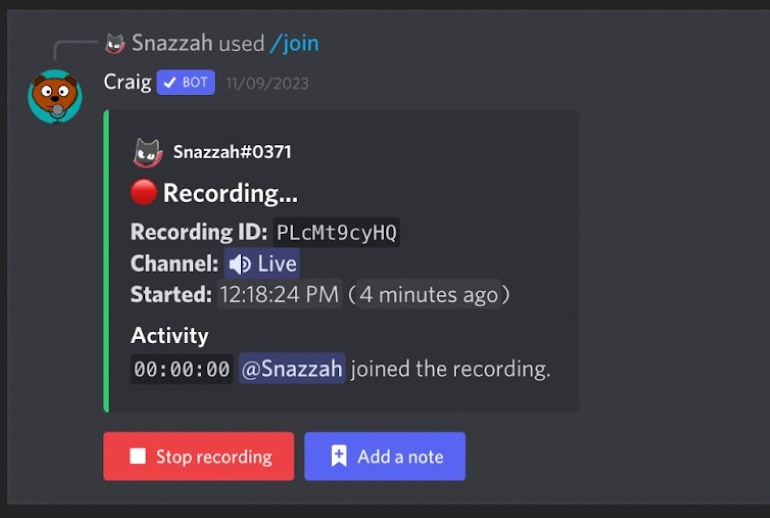
Craig Bot is the most widely used recording bot for Discord server voice channels. The setup is four steps: go to Craig. chat and invite Craig to your server; join the voice channel you want to record; type: join in any text channel; type leave when the call ends. Craig sends download links for each speaker’s audio track as a separate file.
User Review
Craig bot sits in your server waiting for you to invite it to your voice chat using its basic commands. It shows that it’s recording so everyone in the call is aware, and it also records each user’s voice as separate audio files so it’s easier for you to edit it or listen to a specific speaker.
Limitations
When the call happens on your servers, and you only need to record the conversation, Craig is enough. However:
- • It cannot record DM or group calls – it works only within server voice channels.
- • It will send alerts, and all members of the server can see that “Craig has joined the voice channel”.
- • The max recording time is up to 6 hours, and files can be kept for only 7 days.
- • If you’re not the owner of the server and can’t add the bot, you have to use professional audio recorder software to record Discord calls.
- • Craig can produce garbled audio or drop the recording entirely.
Method 2: VideoSolo Screen Recorder [Desktop & Mobile]
VideoSolo Screen Recorder cannot only record screen, it also supports a pure audio mode (when video recording is not required). The system can capture sound, Discord output (for other participants), and your voice through the microphone. It also provides real-time annotations during recording, as well as built-in editing capabilities after the call ends.
 Features
- Lock the selected region on screen to avoid accidental touches and pop-ups.
- Capture the screen in up to 4K resolution at 60fps with zero lag or watermarks.
- Record system audio and microphone sound with noise reduction.
- Support real-time annotations, like adding text, lines, arrows, and more effects.
- Trim, split, merge, convert, or compress recordings immediately.
- Auto-stop or scheduled recording.
Guide to Record Discord Audio via VideoSolo (Computer + Phone)
Situation 1: Record Discord Calls on Your Computer
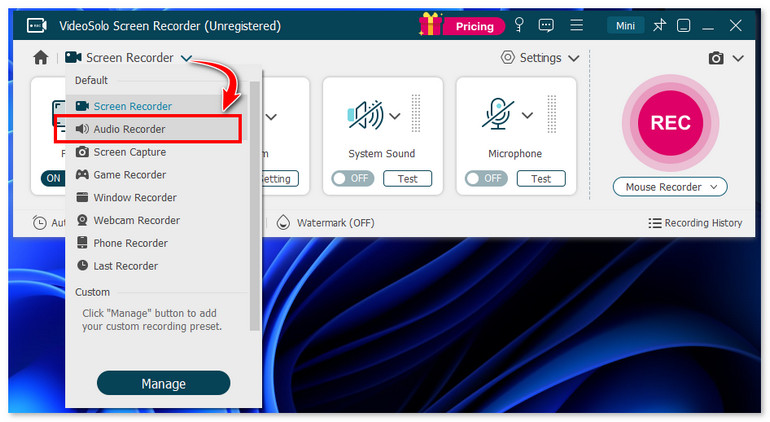
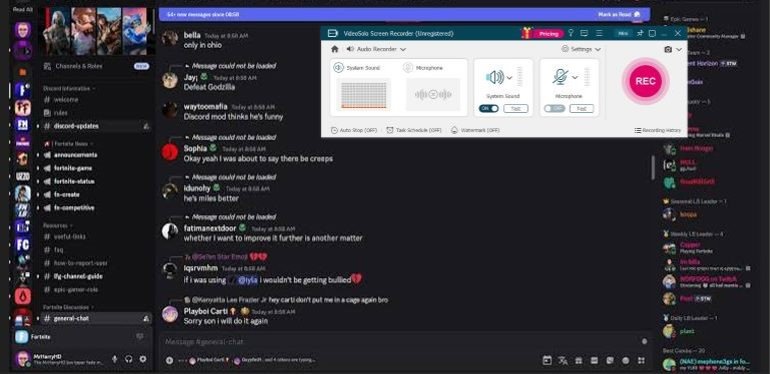
Step 1. If you only record voices, choose Audio Recorder Mode.
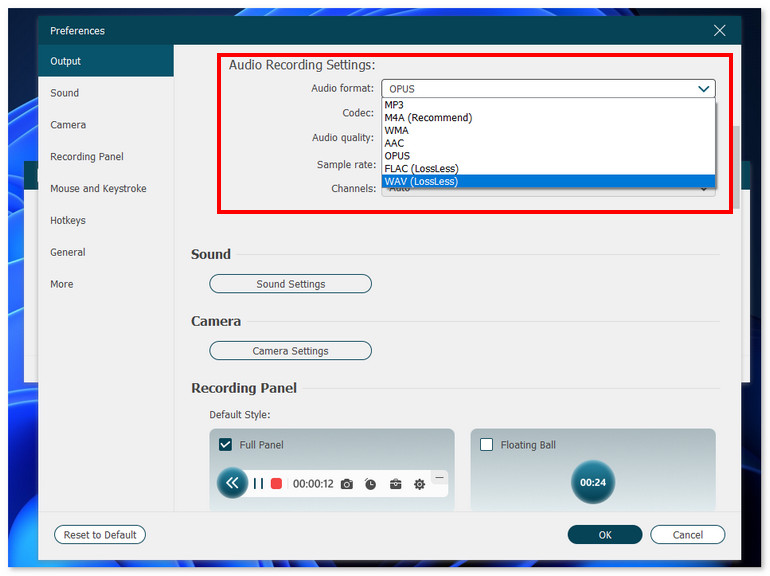
Step 2. Click Setting > Record Setting > Preferences. You can customize the output parameters here.
Step 3. Turn on System Sound and Microphone (you can test the recording volume and delay before starting) and click REC.
Situation 2: Record Discord Calls on Mobile
Native phone screen recording is the first try, but on iOS, the built-in recorder does not capture system audio by default. Android users reported that the result is a file with one side of the conversation, or both sides with echo in many cases.
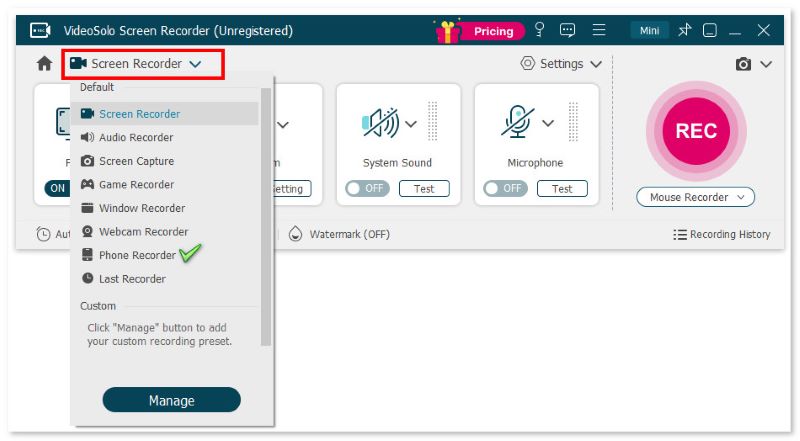
For that, VideoSolo Screen Recorder provides a Phone Recorder mode. You can record audio on Android or iPhone by mirroring the screen to the computer, then record a Discord call with system sound and microphone.
3 Simple Steps Guide:
Step 1. Mirror your iPhone screen to a computer with a USB cable or wirelessly first.
Step 2. Open the program and choose a recording mode called Phone Recorder. Customize your recording region and adjust the system sound and microphone.
Step 3. Click REC to start recording when a reminder box pops up with hotkeys. You can still use the cut-screen feature to capture the Discord call.
Testing Experience
With VideoSolo, I can finally record the built-in sound of the computer system instead of microphone sound only. The process is a lot more hands-off, and you never worry about silent content there after the recording was over – because the software will show a warning when no audio is detected from my mic and allows you to set a time to start and stop recording.
Method 3: OBS [Open-Source]
OBS Studio is the free software option that most people mention first for Discord calls – It can indeed record, on condition that you are willing to spend time learning how to set it up. This isn’t easy for most people.
The main issue is that OBS only captures the sound from the device that you specifically tell it to monitor. If Discord sends sound through your USB headphones, but OBS is monitoring the computer speakers, then there will be no audio recorded. You might only realize this after the call is over.
How to Record Discord With OBS?
Step 1. Open Discord, go to User Settings > Voice & Video, and set Output Device to your default playback device (e.g., Headphones/Speakers).
Step 2. Open OBS, go to Settings > Audio:
- • Set Desktop Audio to the same default playback device used by Discord, so that the sound from Discord can be captured.
- • Set Mic/Aux Audio to your own microphone, so that your own voice can be captured.
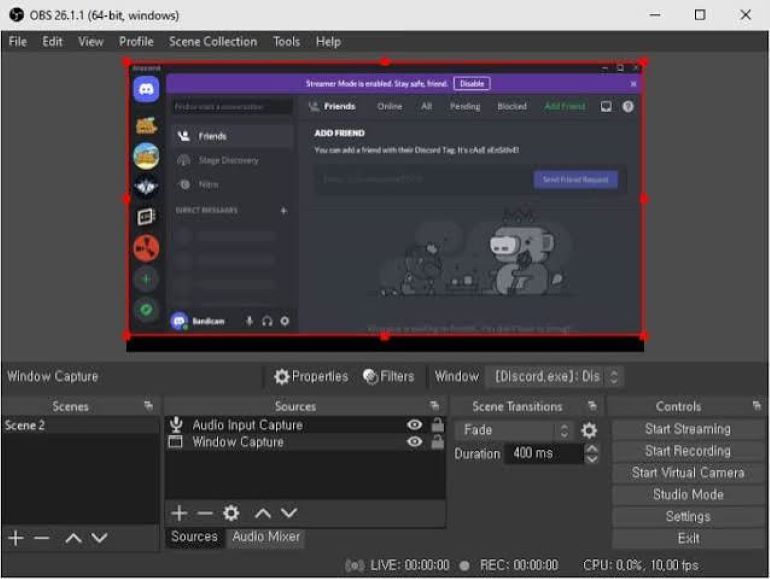
Step 3. Add a Discord screen source in OBS’s Sources window:
- • On Windows: Select Window Capture, and select the Discord window from the dropdown menu.
- • On macOS: Select the “Window Capture” mode in macOS Screen Capture, and select only the Discord window.
Step 5. Click Controls > Start Recording to record audio on your PC.
Testing Experience
I wanna do a shared Let's Play with friends in Discord. But all my attempts have had the Discord calls recorded through my headset mic, so you can barely hear anyone talking. I searched for a lot of tutorials on YouTube and found out that I have to set up Virtual Audio Cable and install something like Voicemeeter… For someone who wants to start a call in five minutes and simply wants to save this call, it’s too complex to do.
VideoSolo has simplified this setup process for you: the system sound and microphone settings are just two switches; they can be turned on or set up directly.
Method 4: Audacity [Audio Editor]
Audacity is a well-known open-source audio recording and editing software. It is widely used for podcast production, making music samples, or sound restoration tasks. It comes with a variety of effects tools, such as noise reduction, equalizers, and reverb, which are useful for reducing background noise. But if you don’t set it up properly, recordings in Discord are usually silent or contain only your own voice.
How to record Discord calls with Audacity? (Using Windows as an example)
Step 1. Open Audacity. In the Audio Setup toolbar, click Host and choose Windows WASAPI.
Step 2. Click Recording Device and select the output device marked with “(loopback)”, for example “Speakers (loopback)” or “Headphones (loopback)”.
Step 3. Set the recording channel to 2 (stereo). Press Record in Audacity. When it ends, you can export the file as WAV or MP3.
Limitations
If you want to record in separate tracks for post-editing, it will be more complicated to set up. If the speaker’s voice is too soft or there are network issues, the recording quality will be affected as well.
Another important point for Mac users: The Mac system doesn’t have a native Loopback recording function. You have to install the BlackHole virtual audio driver first. Then create a “Multi-Output Device” in “Audio MIDI Settings” to combine your headphones with the BlackHole driver. So that Audacity can capture the sound and you can hear the call properly.
FAQs on Recording Discord Calls
Q: Does Discord record the calls?
A: Discord does not have native features for recording voice or video calls. To record calls yourself, you must use external screen recorders, audio capture tools, or dedicated Discord bots (such as Craig).
Q: Does Discord notify you if you screen record calls?
A: No. It's better to inform all participants during the call that you are recording. Although Discord does not explicitly prohibit recording, inform others that your actions comply with laws and regulations.
Q: How do you record your Discord calls on mobile without bots?
A: You can use the built-in screen recording function of your phone or the phone Recorder Mode of VideoSolo Screen Recorder. Compared with simple phone screen recording, the latter can only record the speaking voice, providing you with more controls and features for post-production.
Conclusion
Based on your needs, choose the right tool to record a Discord call. Craig Bot is easy to install but only supports server voice channels. OBS and Audacity are both free, although you must be configured correctly with the audio routing settings to record properly. Compared to that, VideoSolo Screen Recorder is sufficient to cover most Discord recording scenarios.
More Reading
Capture screen activities, audio, webcam, gameplay, and mobile screens on Windows and Mac with high quality.

